✦ Free iPhone Automations

The free automations library.

Every free iPhone automation I build, in one place, written out step by step. I add a new one whenever I make one, so this page keeps growing. No app to learn, just the tools already on your phone.

What's in the library

New

Your alarm says the time

Snooze or turn off an alarm and your phone says the time out loud, so half asleep you knows whether to get up.

Build 2 min · Jump to it
🖼️Shortcuts

The screenshot saver

File every screenshot into a searchable note with one word, and clear it out of your camera roll.

Build 5 min · Jump to it
📣Automation

Find your lost phone

Text one word to your phone and it lights up and plays a song until you find it, even on silent.

Build 5 min · Jump to it
🛒Automation

Your grocery list, on arrival

Your grocery list opens automatically the second you get to the store, no tapping.

Build 5 min · Jump to it
🔇Automation

Mute social when you open it

The sound cuts out the moment you open a social app, so it doesn't pull you in.

Build 3 min · Jump to it
🚗New

Your car starts quiet

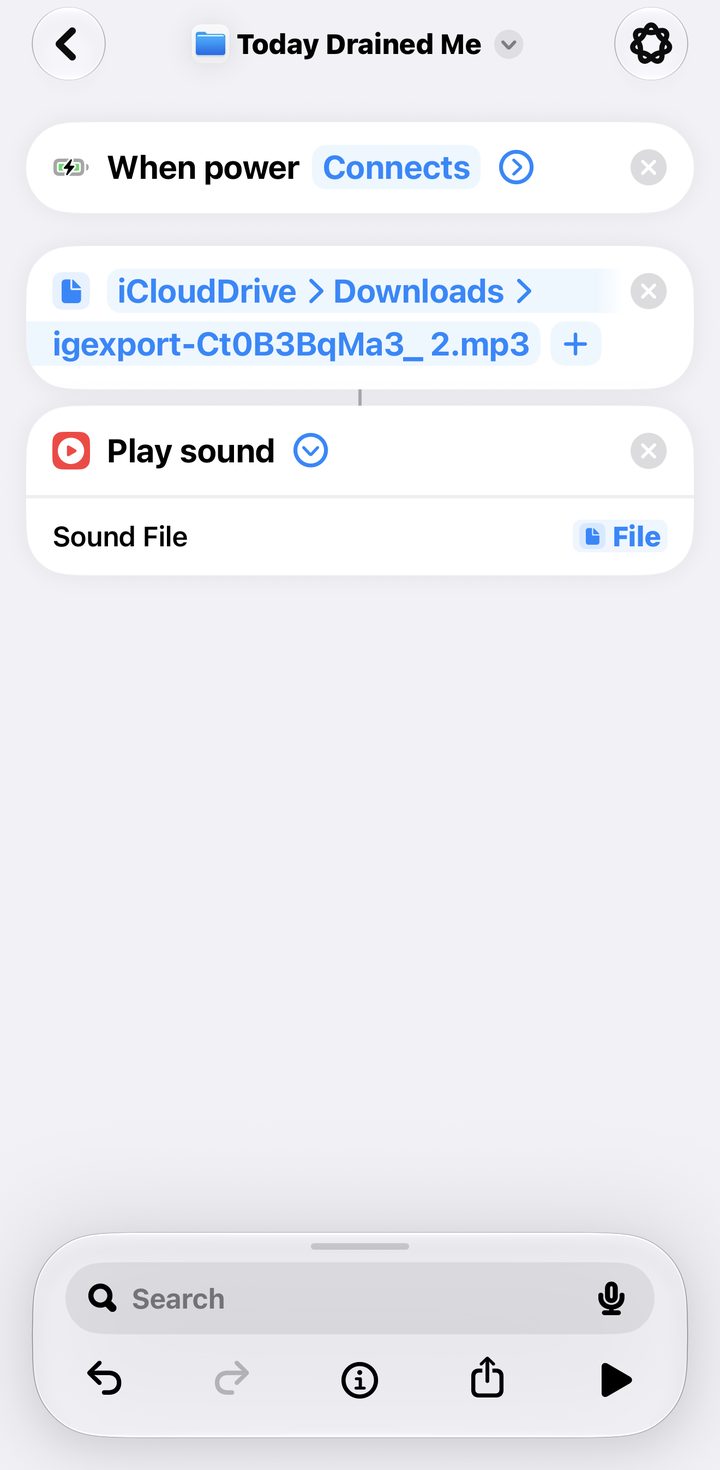
Your audiobook pauses the moment you connect to the car, so the school run does not start mid chapter.

Build 3 min · Jump to it
🔒New

Lock the phone to one app

Hand it to a toddler and they stay in one show, no closing it, no buying things, no wandering into your email.

Build 3 min · Jump to it

One email, the whole library

Unlock every step, free.

Drop your email and the full step-by-step for every automation opens right here on this page. You'll also be first to get each new one as I add it.

No spam. Unsubscribe anytime. The steps stay on this page for you.

✓ You're in. Every step is below, a copy is on its way to your inbox, and new automations will show up here.

The system these come from

Your automations are below. Here is the whole system.

The free automations take a few small things off your plate. The Automation Kit is the system they come from: your calendar, the morning text, the lists, and the before you leave checklist, running together. The Complete Bundle adds the family chore, routine, and weekly reset systems on top.

The Automation Kit

Calendar, morning text, lists, and the before you leave checklist, as one running system. Whether it is two of you or seven.

$29

Get the Automation Kit

Best value

The Complete Bundle

Everything in the kit, plus the family chore, routine, and weekly reset systems on top.

$45

Get the Complete Bundle

New · Your alarm says the time

Snooze it, and it says the time.

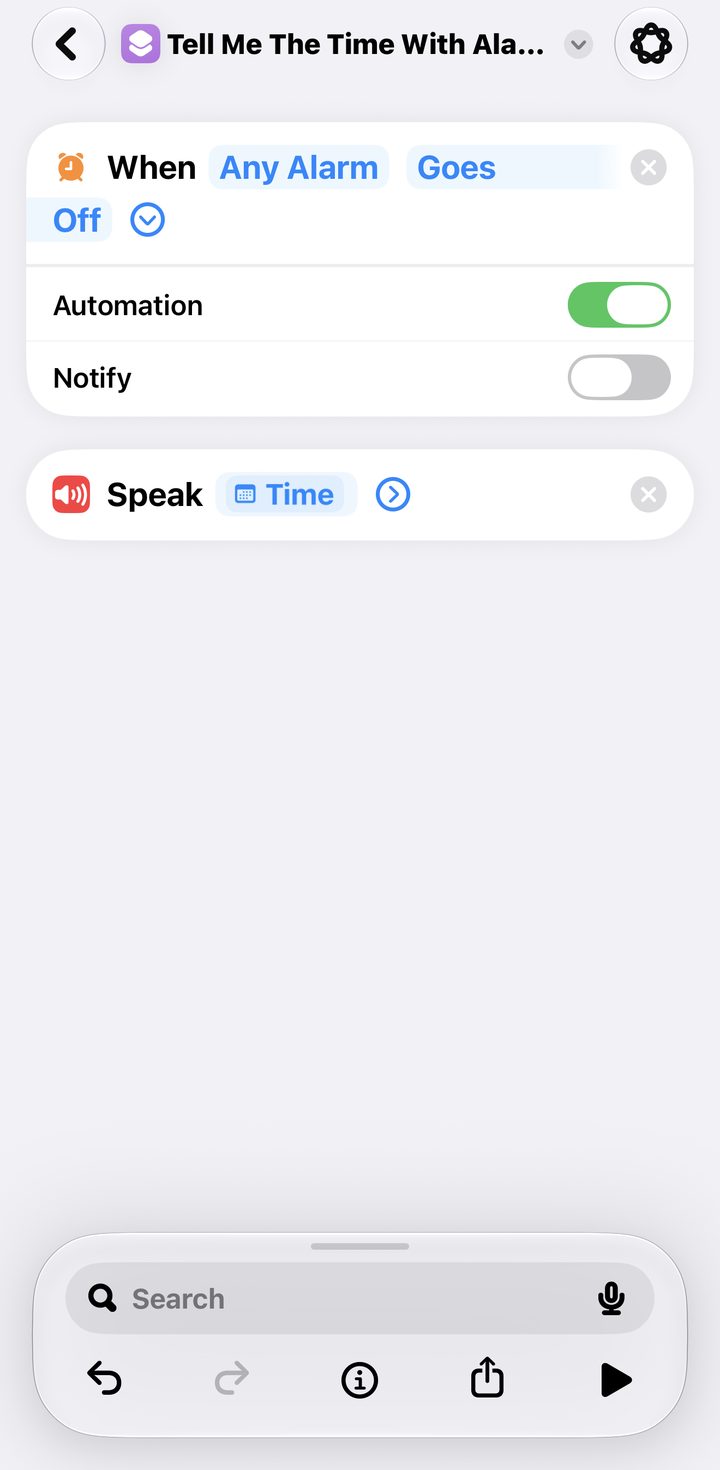
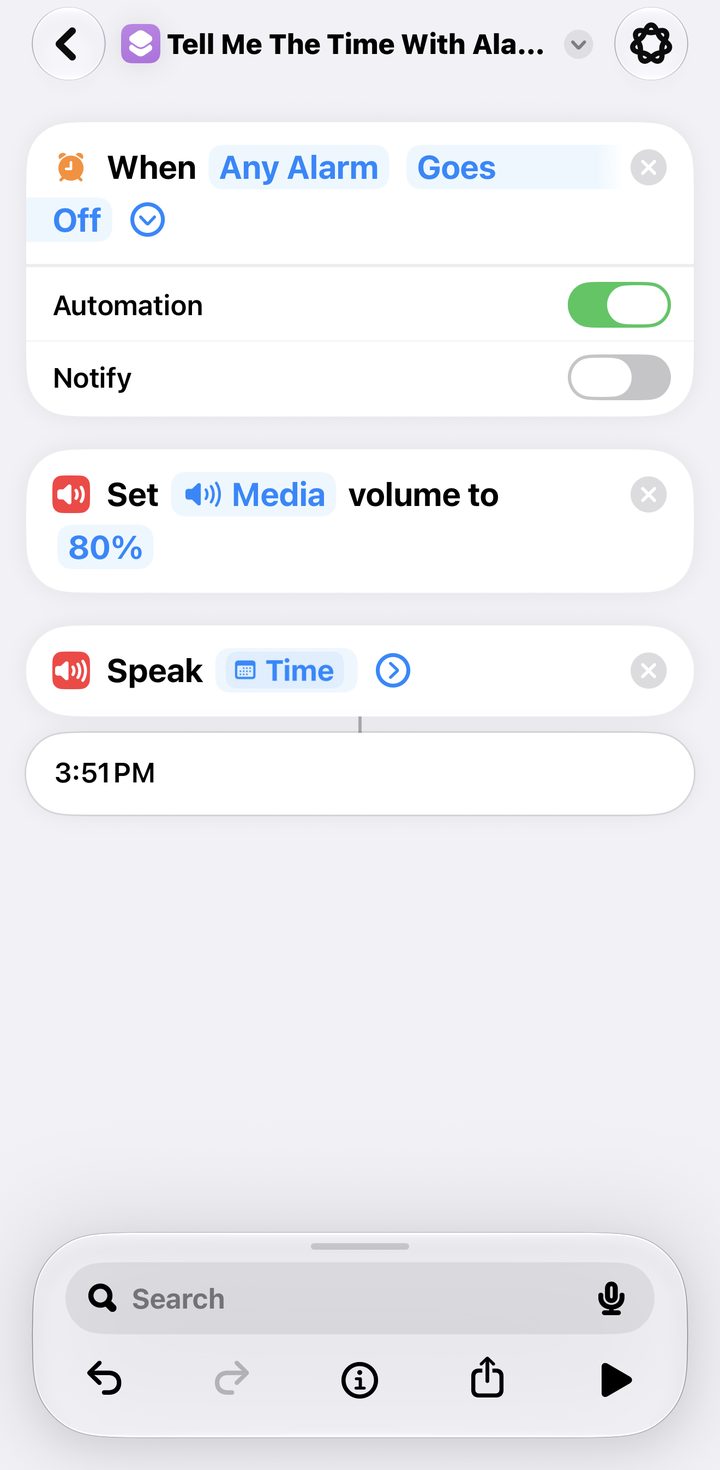
What it does: every time an alarm goes off, gets snoozed, or gets turned off, your phone says the time out loud. Half asleep you knows right away whether to go back to sleep or get up, without opening your eyes or reaching for the phone.

Build 2 min In Automation tab Trigger Alarm

The steps

1

Open Shortcuts and go to the Automation tab.

2

Tap the plus and choose Alarm.

3

Pick your trigger: Is Snoozed, Is Stopped, or Goes Off. I use Goes Off, so if I turn the alarm off by accident instead of snoozing, I still hear the time.

4

Choose the alarm. I pick Any, since I run my real wake up plus a backup a little later, and this way it catches me either way.

5

Set it to Run Immediately, then tap Next.

6

Create a new shortcut.

7

Add the action Speak and choose Speak Text.

8

Tap the text field and choose the variable Current Date.

9

Current Date will ask for the date, time, or name. Choose Time, and save.

Fix · it reads the date instead of the time

Tap the Current Date variable inside the text field and set its format to Time. If it says a long date out loud, the format is still on Date.

Fix · nothing happens when the alarm goes off

Automations only run on their own if you chose Run Immediately. If it is set to Run After Confirmation you get a notification you have to tap first. Open the automation and switch it to Run Immediately.

Fix · the voice is too quiet and turning the volume up does nothing

Speak Text runs on Siri's voice volume, which is a separate channel from media and ringer, so setting the Media volume does nothing to it and it stays quiet no matter what. The fix is to swap that action out. Delete Speak Text and build these three instead: Set Media volume to 100%, then Make Spoken Audio from Time, then Play Sound using that spoken audio. That routes the voice through media volume, so turning the volume up actually works. Fair warning, at 100% it is loud, so test it before you rely on it. I walk through this in the video.

New · The quiet car

Your car starts quiet.

What it does: when your phone connects to the car, it pauses whatever you were listening to, so pickup does not start mid chapter.

Build 3 minIn Automation tabTrigger CarPlay

The steps

1

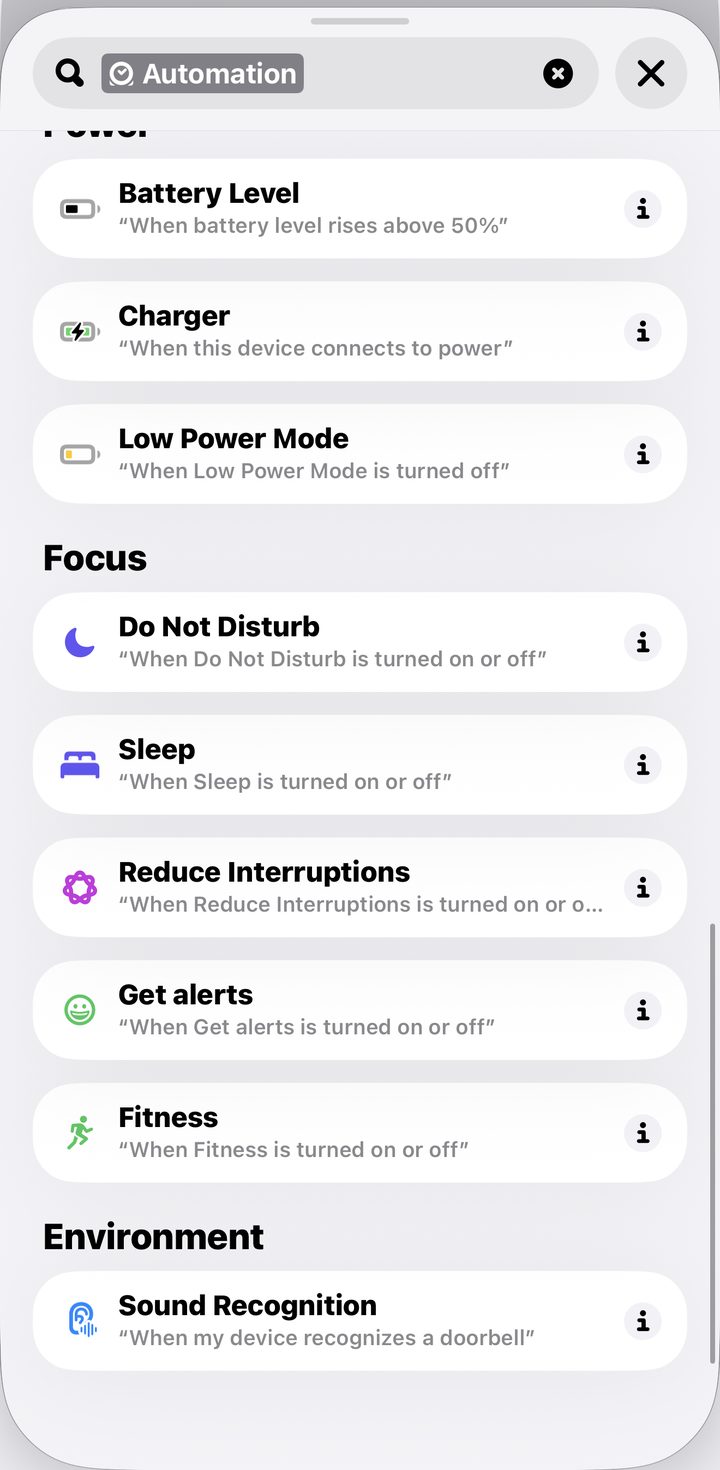
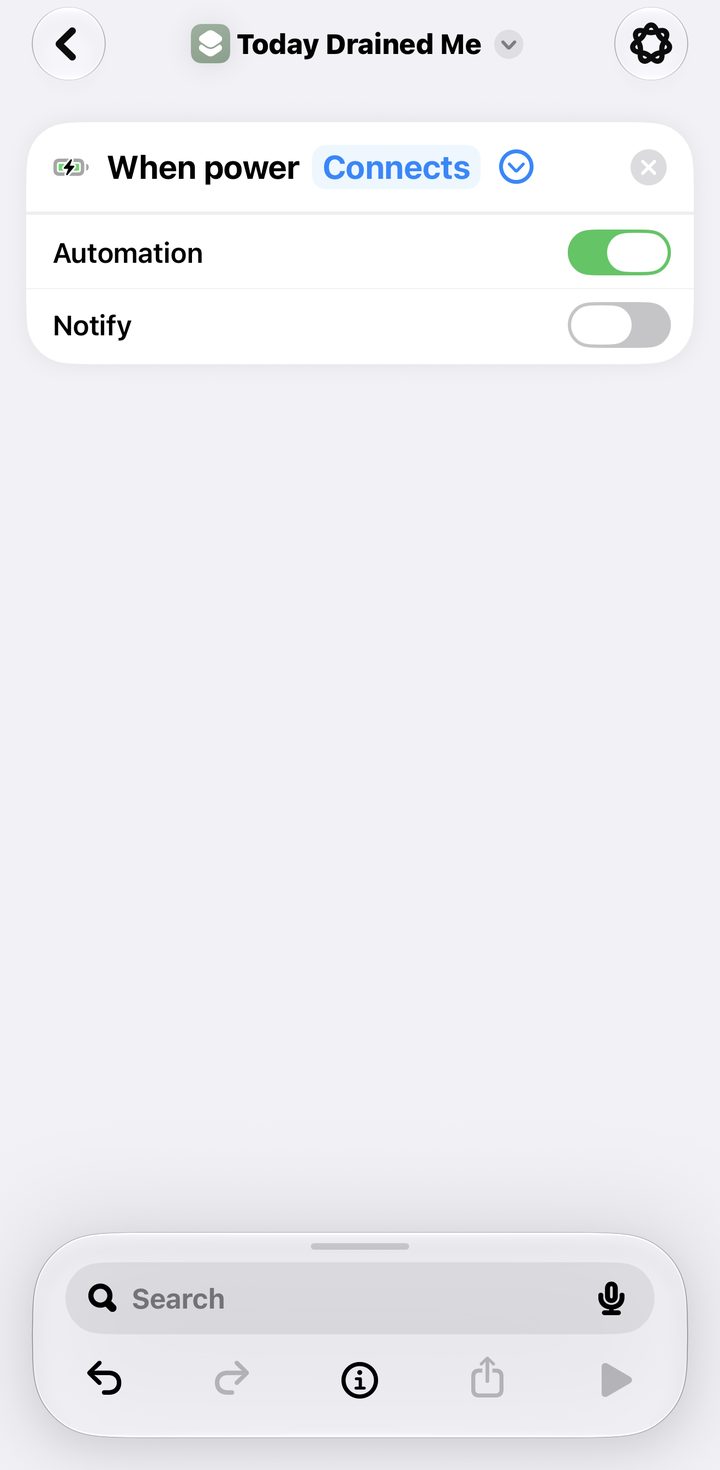
Open Shortcuts, tap the Automation tab, then New Automation. Choose CarPlay, select Is Connected, and pick Run Immediately with Notify When Run off.

2

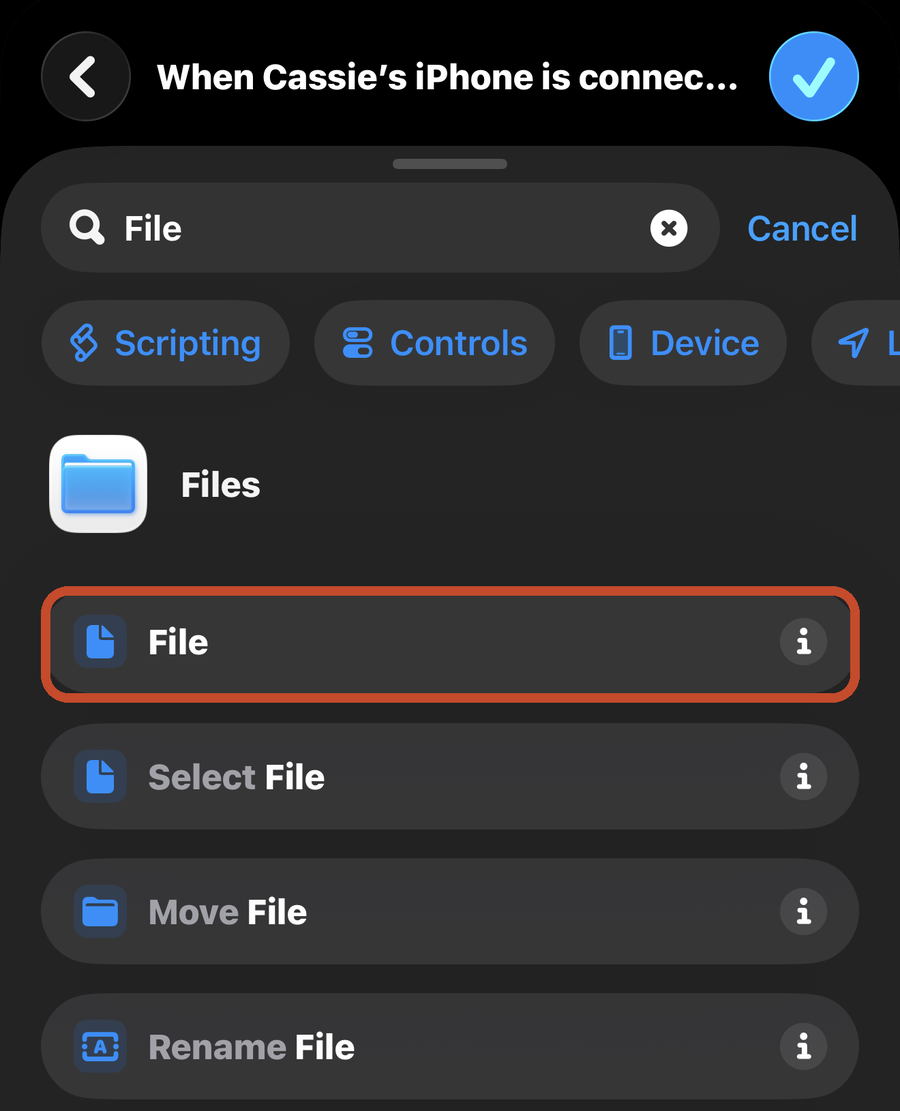
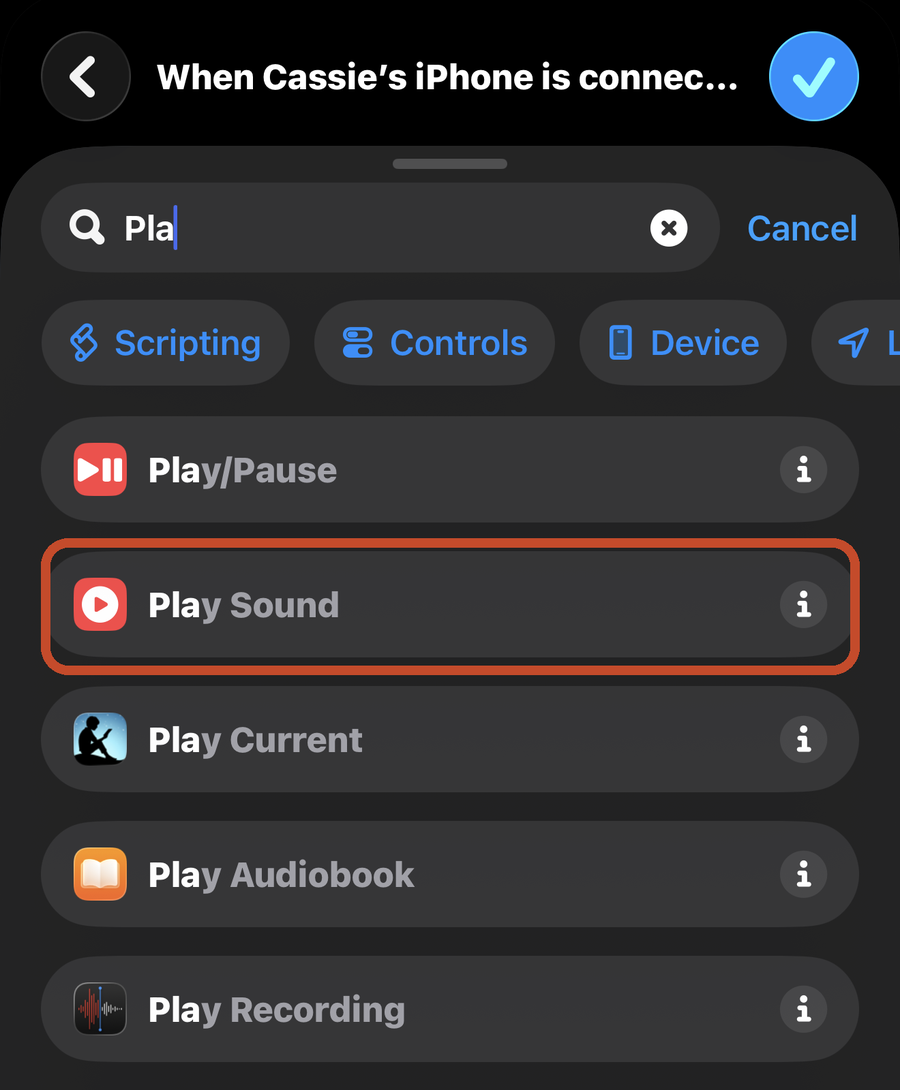
Tap Create New Shortcut, then Add Action. Search Play/Pause, add it, tap it, and set it to Pause. Tap Done.

3

Make a second automation the same way, but choose Bluetooth as the trigger and pick your car. Add the same Pause action. Bluetooth connects a beat sooner, so the two cover each other.

Fix · a few words slip out

Depending on the car, a few seconds can play before it catches, because the phone has to finish connecting first. Building both versions keeps it as short as possible.

New · Lock to one app

Hand it over, they stay in one app.

What it does: Guided Access locks the phone to a single app until you unlock it, so a toddler cannot leave the show, buy anything, or wander into your email.

Build 3 minIn SettingsStart Triple-click

The steps

1

Open Settings, tap Accessibility, scroll to Guided Access, and turn it on. Turn on Accessibility Shortcut too.

2

Tap Passcode Settings and set a passcode you will remember. This is what keeps little hands from ending it.

3

Open the app, click the side button three times, and tap Start. The phone is now locked to that app.

4

To get out, triple-click again and enter your passcode. Tap End to unlock, or Resume to keep them locked in.

Fix · stray taps

Before you tap Start, circle any part of the screen with your finger to disable it, so a tap on an ad or a menu does nothing. Time Limits can end the session on its own.

The screenshot saver

File a screenshot with one word, then find it later.

What it does: files every screenshot into a note, lets you choose where it lands, and tags it with a word so you can search it later. One tap from the share sheet, and it clears the screenshot off your camera roll.

Build 5 min App Shortcuts Via Share sheet

The steps

1

Open Shortcuts, tap the plus, and create a new shortcut.

2

Add Get Latest Screenshot, keep it set to 1.

3

Add Ask for Input → Text → ask "What is this screenshot?" This is your searchable word.

4

Add Set Variable, name it Searchable word, set it to the Ask for Input.

5

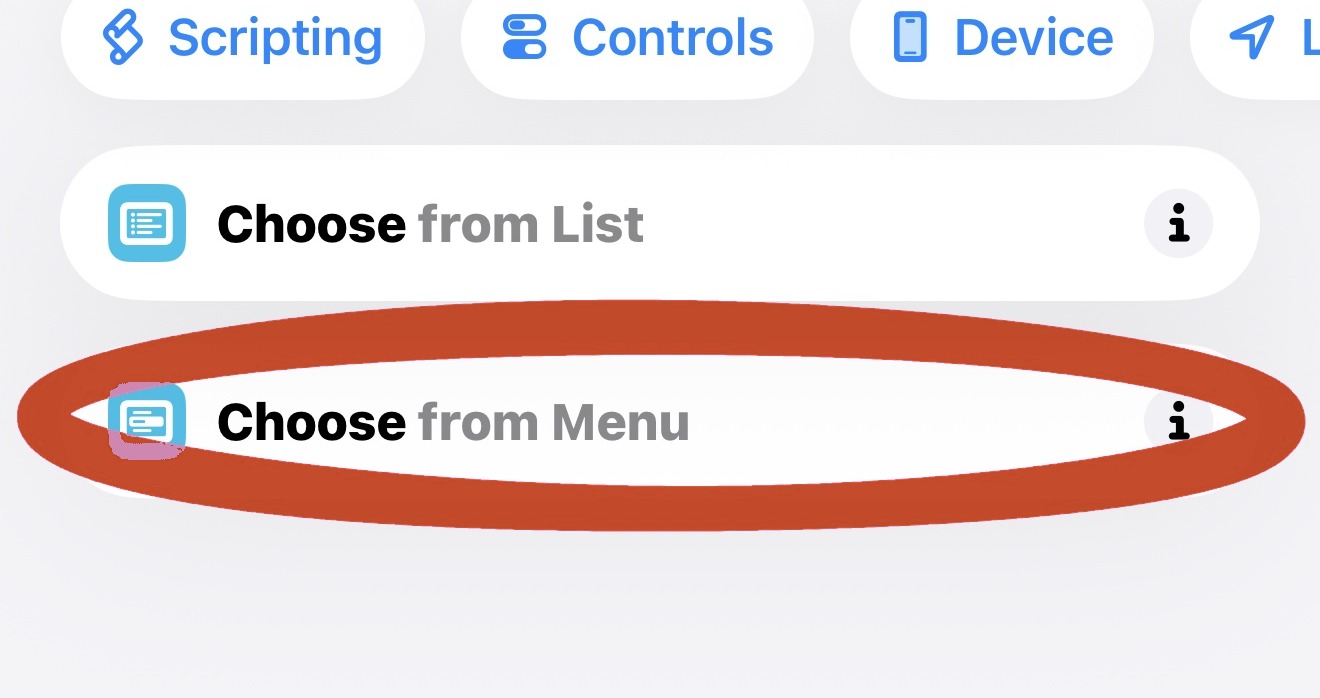
Add Choose from Menu with two options: Folder and Running note.

6

Under Folder → Create Note → the screenshot and your word → Folder: Screenshots.

7

Under Running note → Append to Note → the screenshot and your word → your Screenshots note.

8

After the menu, add Delete Photos → the screenshot, so it clears from your camera roll.

9

Tap the i, turn on Show in Share Sheet, and name it.

10

To use it: take a screenshot → tap share → tap the shortcut → type your word → pick where it goes.

Fix · it still says "Delete Photos"

This is where most people quit. Tap the blue word in the Delete action and switch it to Latest Screenshots. If it still reads "Delete Photos," the variable is not selected and your camera roll won't clear.

Fix · it is not in the share menu

Show in Share Sheet is off. Tap the i inside the shortcut and turn it on, then it appears under View More when you tap share.

Fix · stuck on step 5, the Choose from Menu part

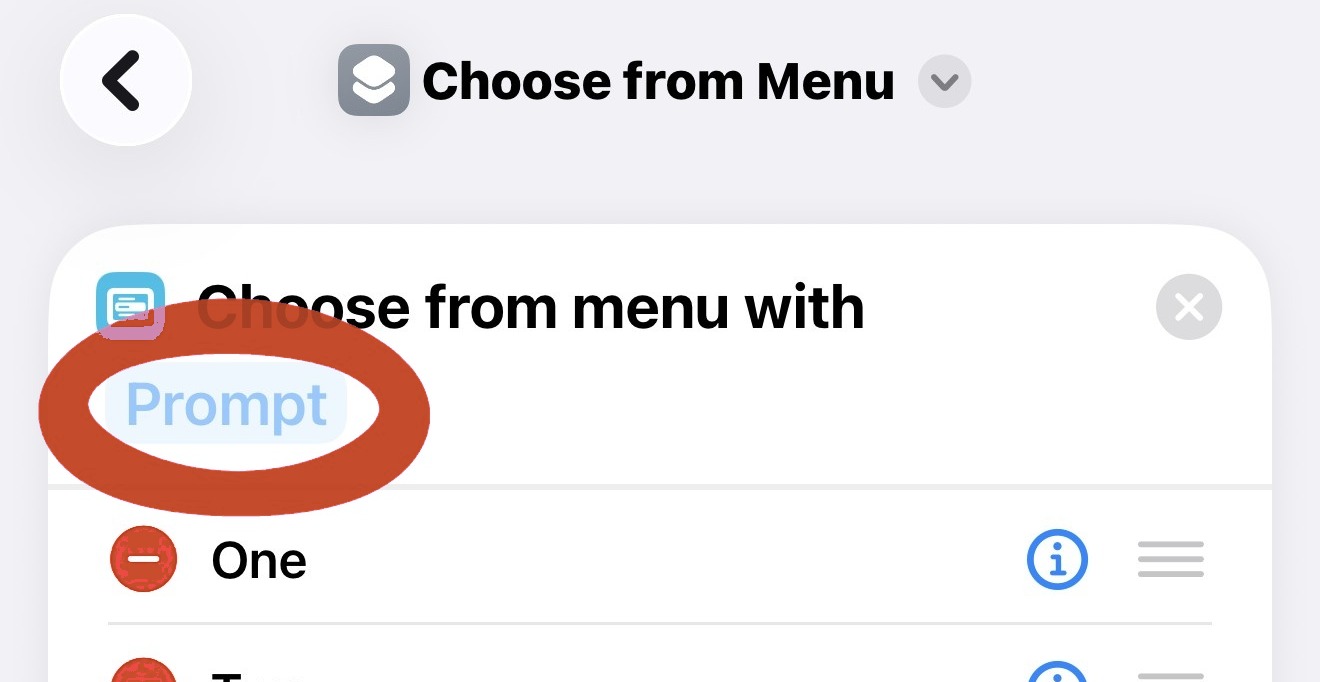
This is the step most people name. After you add Choose from Menu, tap the grey Prompt line to label it, then tap each option row to type its name, Folder and Running note. If the options look blank, you have not typed them in yet, tap into each one and type the word.

Fix · it asks for text but no keyboard comes up

The Ask for Input step is waiting for you to type. Tap once on the input area near the bottom of the screen and the keyboard opens, then type your word and press Done. If nothing appears, scroll up and tap the input field again so it is selected.

Fix · at the share step I only see shared album

You are looking at the photo's own share options, not the shortcut. Scroll down past AirDrop and the row of apps to the list of actions, and tap the shortcut by its name. If it is not there, open the shortcut, tap the i, and turn on Show in Share Sheet.

Fix · my phone has no Delete latest screenshots option

The action itself is called Delete Photos. Add it, then tap the blue word inside it and choose Latest Screenshots as what it deletes. On older iOS it may be listed as Delete Images, the steps are the same.

Fix · why file into Notes instead of Files

Notes lets you search by the word you typed and syncs across your devices, and the whole thing stays one tap. If you would rather use Files, swap Create Note in step 6 for Save File and point it at a Screenshots folder.

Don't want to build it? There is a one-tap version you install from an iCloud link, no steps to follow. It includes this saver plus a shortcut that clears the thousands of screenshots already sitting in your camera roll.

Get it for $4.99 →

Find your lost phone

Text it marco and it sings back.

What it does: you text one word to your own phone and it lights up and plays a song at full volume until you find it, even on silent or Do Not Disturb.

Build 5 min In Automation tab Trigger Messages

The steps

1

Open Shortcuts → Automation tab → New Automation → Message.

2

Set Sender to Any, so it works from any phone.

3

Set Message Contains to marco, then Done.

4

Choose Run Immediately → Next.

5

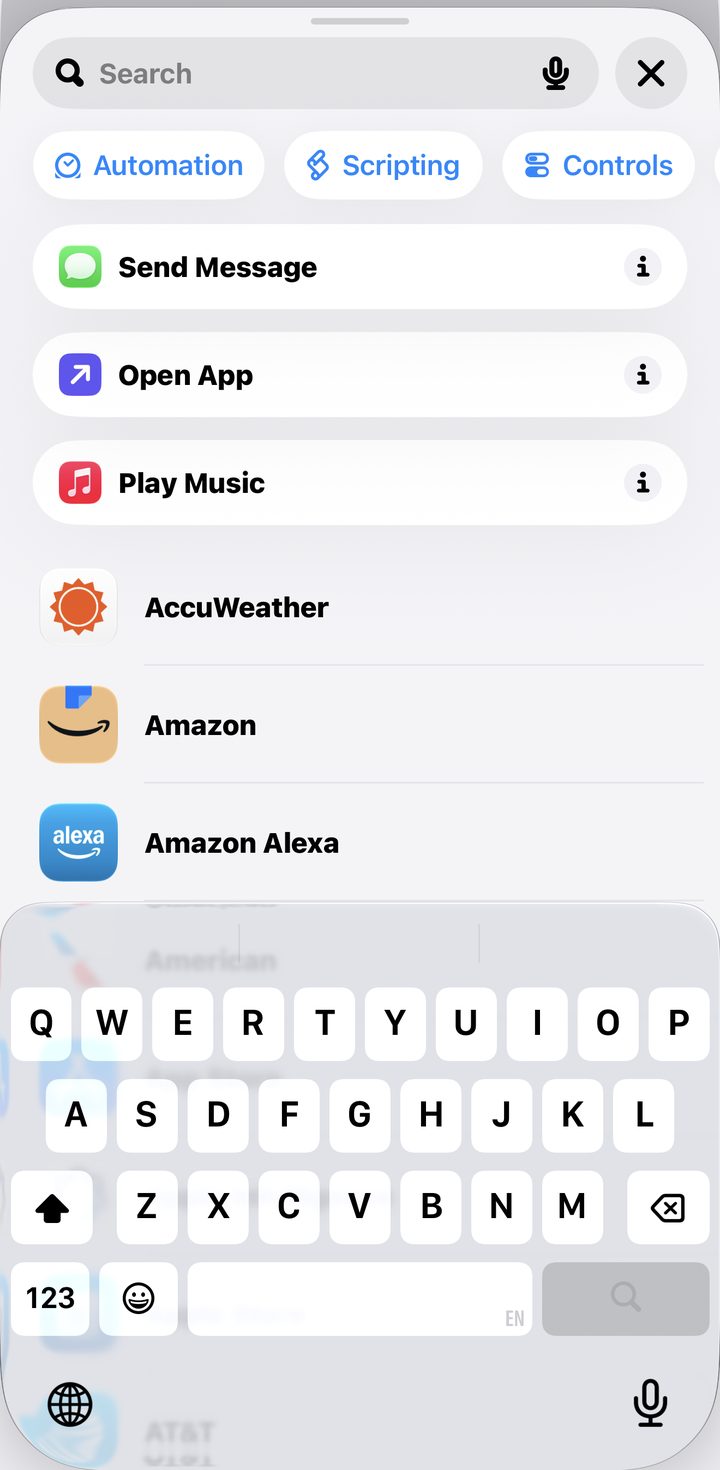
Add these four actions in order, searching each one in the bar at the bottom:

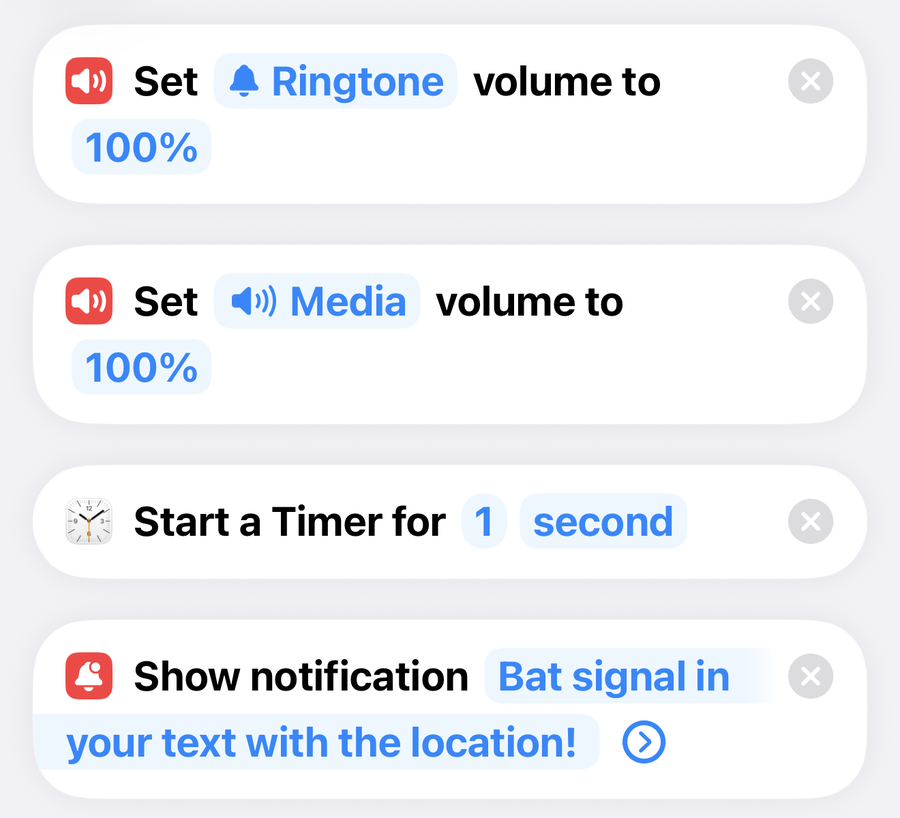
  • Set Flashlight On — lights it up so you can spot it.
  • Set Media Volume — drag it to 100%.
  • Set Media Volume again — also drag to 100%, then tap the blue word Media and switch it to Ringtone.
  • Play Music — pick a song you have already downloaded.

You add the volume action twice, once left on Media and once switched to Ringtone. Media is the volume that plays over silent mode, and Ringtone covers it when the phone is not on silent.

6

Tap Done → test it by texting yourself marco from another phone.

Fix · it will not play on silent

Set the Media volume to 100 percent, not just the Ringtone. Media volume is what plays over the silent switch. And make sure you chose Run Immediately, or it waits for a tap on the lock screen.

Fix · it fires on the wrong texts

Pick a word you'd never text or say by accident, skip real names and everyday words like "ok." A nonsense phrase (olly-oxen-free) never goes off on its own.

Fix · how do I text it if I do not have my phone

You text your own number from any other device, or ask someone near you to text it. That incoming message is what sets it off, so your phone does not need to be in your hand.

Fix · how does it stop

It stops when you pick up and unlock the phone, and the song also ends on its own when the track finishes. If you want an off switch, add a Stop Playing action to a second automation triggered by a different word.

Fix · I have no song or music options

The action is Play Music and it pulls from the Music app, so pick a song you already have saved or downloaded. A downloaded track plays even with no signal. If the list is empty, open Music once and add or download a song first.

Fix · does it work on Android, iPhone 15, or Apple Watch

This uses the iPhone Shortcuts app, so it is iPhone only, and it works on iPhone 15 and newer. You cannot start it from an Apple Watch, but any second phone or another person can text the word.

Your grocery list, on arrival

Your list opens the second you park.

What it does: opens your grocery list automatically the second you arrive at the store, so you never stand in the aisle trying to remember what you came for. No app, no tapping.

Build 5 min In Automation tab Trigger Location

The steps

1

In the Reminders app, make a list called Grocery List.

2

Open Shortcuts → Automation tab → New Automation.

3

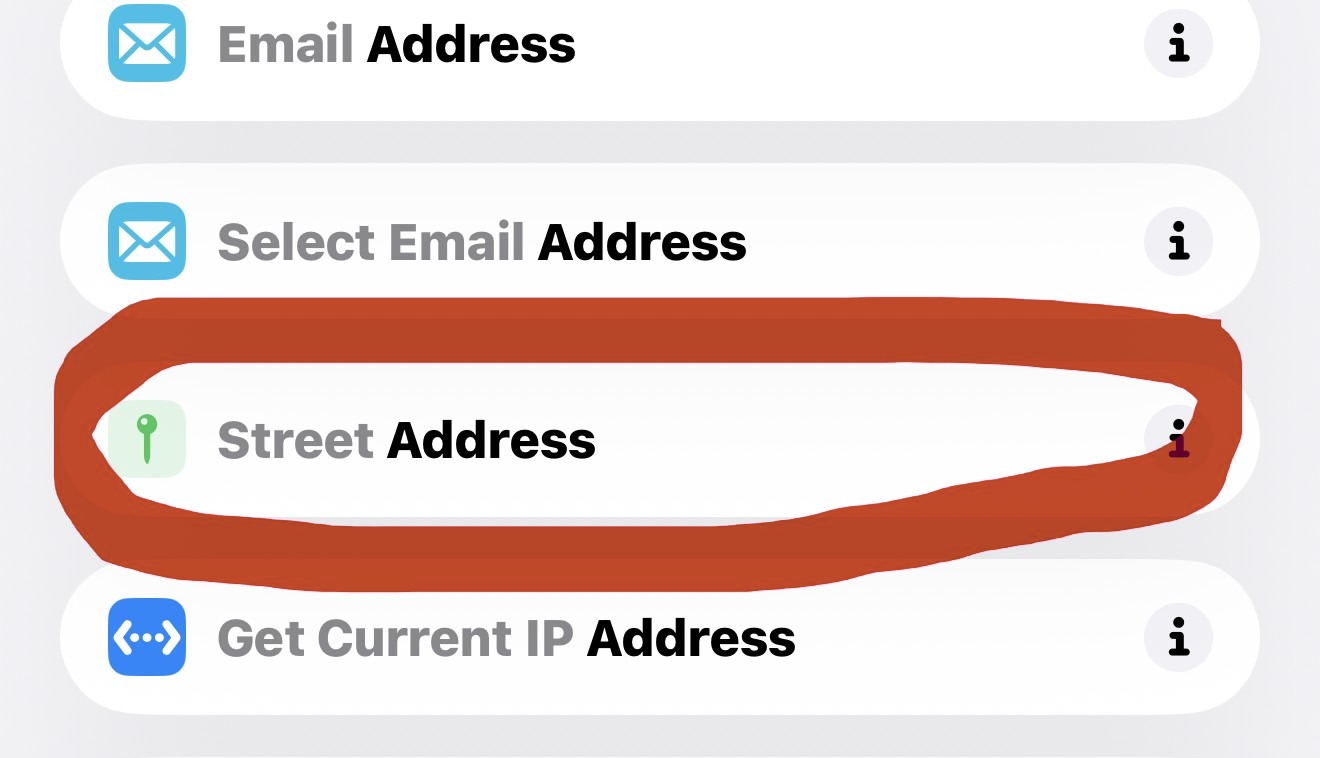
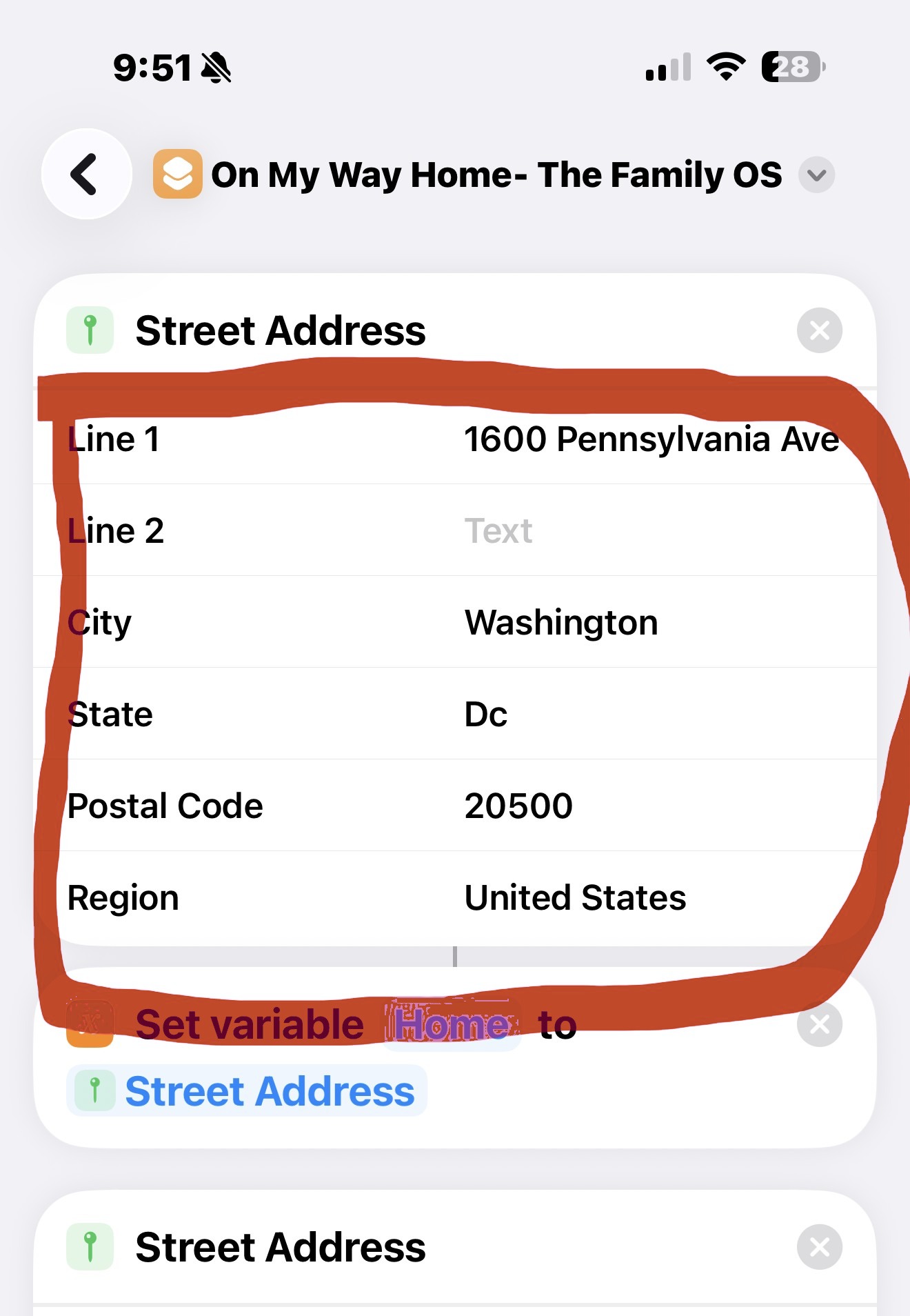
Choose Arrive → your store address → set the circle over the parking lot → Run Immediately → Next.

4

New Blank Automation → Add Action → Show Reminders List → Grocery List → Done.

5

Repeat for each store you visit. Two or three covers most of your week.

Fix · it opens too early or on the wrong trip

Tighten the radius so the circle just covers the parking lot, and make sure the trigger is Arrive, not Leave.

Fix · I get an error on the first step on a new phone

When a shortcut moves to a new phone its link to your Reminders list gets cleared, so it cannot find the list. Open the automation, tap the list name in the Show Reminders List action, and pick your Grocery List again.

Mute social media when you open it

Open the app, the sound dies.

What it does: cuts the volume to zero the moment you open a social app, so the autoplay and the noise don't pull you in and hold you there.

Build 3 min In Automation tab Trigger Apps

The steps

1

Open Shortcuts → Automation tab → New Automation → App.

2

Choose Instagram, TikTok, Facebook → Is Opened → Next.

3

Add Set Volume → 0%.

4

Choose Run Immediately → Done.

Fix · the sound stays off after I leave

Add a second automation set to Is Closed that sets the volume back up. And make sure the first one is Run Immediately, or it waits for a tap.

Fix · it did not mute

Automations only run on their own if you chose Run Immediately. If you get a notification asking you to confirm, open the automation and switch it from Run After Confirmation to Run Immediately.

When you want the whole system

These save you minutes. The kit saves your week.

The Automation Kit sets up your calendar, your morning text, your lists, and your before you leave checklist as one system, the same one we run with seven people. These free ones are a few pieces of it.

See the Automation Kit, $29 →

Or get everything in the Complete Bundle, with the chore, routine, and weekly reset systems on top, for $45.