New · Bat Signal
Your kid taps once, and your phone rings with their location.
Every parent has said it. Text me and I will come get you, no questions. The problem is the texting. A kid standing in a room where things have gone sideways is not going to type out a message with people watching. So they don't, and you find out later.
This is two shortcuts. One sits on your kid's home screen looking like nothing. They tap it, and it texts you a code phrase and where they are. The other lives on your phone, and when that text lands it turns your volume up and rings like a kitchen timer, even on silent, even in Sleep focus. Nobody near your kid hears a thing. You do.
It also works for a friend at a bar who needs a reason to leave, or as a check on me signal for someone who is having a hard time. Same build, different name in the contact.
Part one · your kid's phone
Do this part on their phone, with them. The link installs it and asks one question, who gets the signal.
Tap the link below on your kid's iPhone and tap Add Shortcut. It asks Who should get the Bat Signal? Tap the plus, pick you, add the other parent too if you want, and tap Done.
Get the Bat Signal shortcut
Run it once, now. Tap the shortcut in their library. The phone asks for permission to use their location and to send a message. Tap Allow on both. That question cannot come up the first time they actually need it.
You get a real text with their real address in it. That is the test.
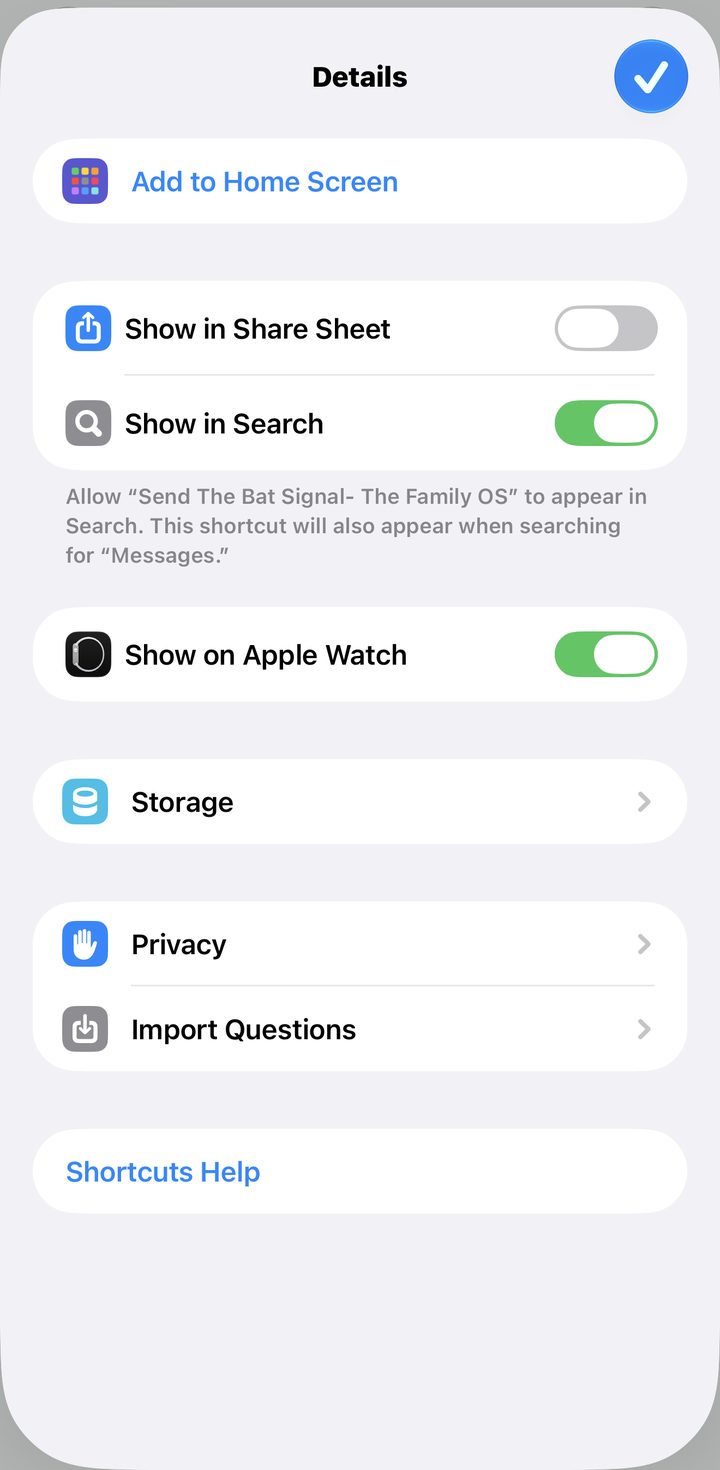
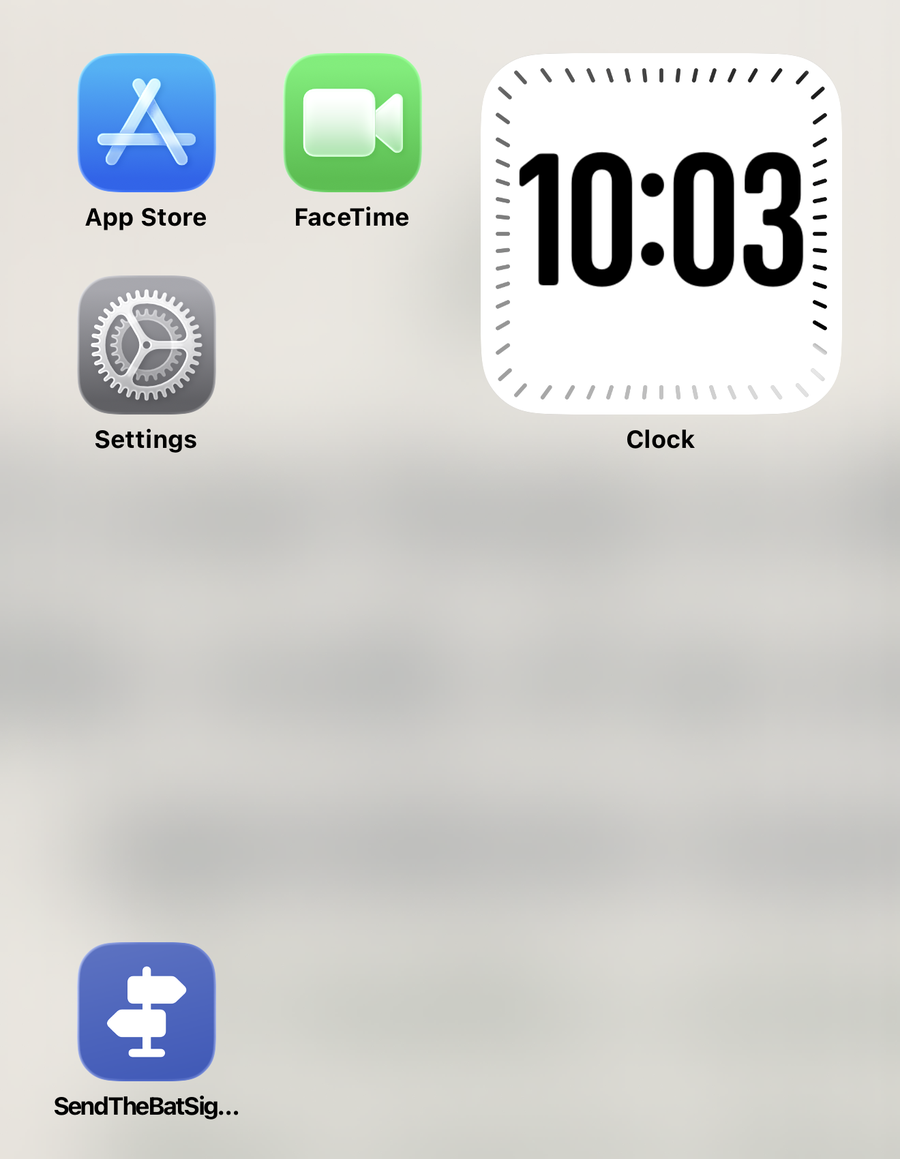
Put it on their home screen as a button, so the whole thing is one tap. Open the shortcut, tap the i at the bottom, and tap Add to Home Screen, the first item on the Details sheet. On iOS 26 or earlier, press and hold the shortcut in your library, tap Share, then Add to Home Screen. Name it whatever they want. Something that reads like nothing is the point.
Part two · your phone
The link installs the alarm with its trigger already built. One thing it cannot bring with it is your kid, so you pick them once. Until you do, it stays off.
Tap the link below on your iPhone and tap Add Shortcut.
Get the Bat Signal Received shortcut
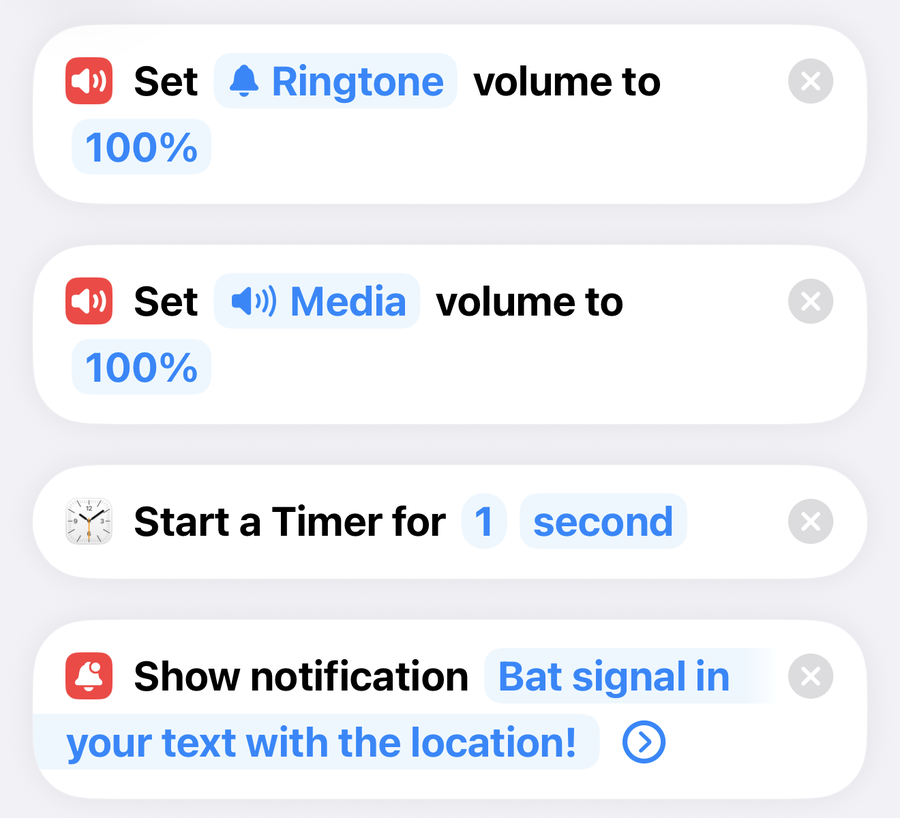
Required, or it will not go off. Open Bat Signal Received from your library. If you see a summary with a Describe a change box, tap Edit in the top right. At the top is a gray banner that says Configure "Sender" to enable this automation. Tap the gray Sender in the block under it and pick your kid. The banner disappears when it is set.
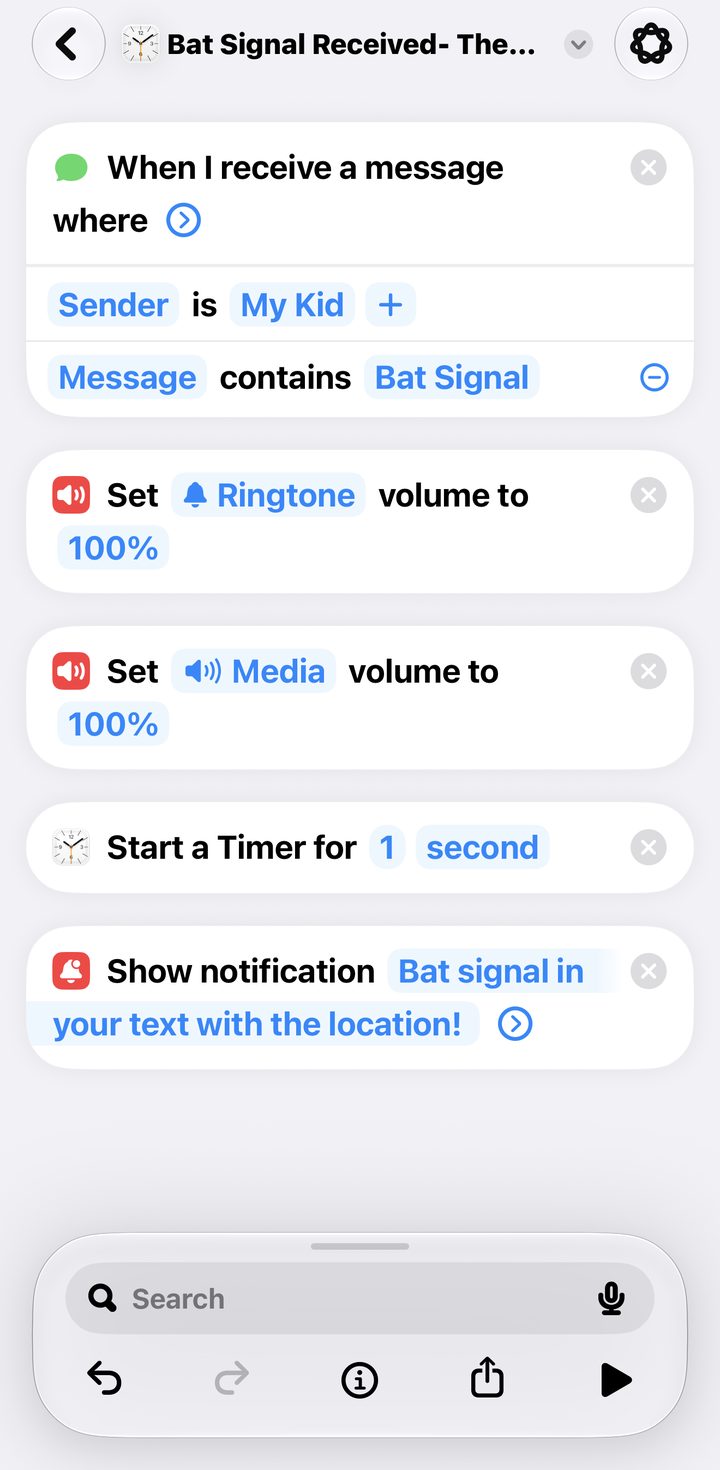
No trigger block at the top? Your iPhone is on iOS 26 or earlier, which leaves the trigger out of the link. Tap Automation at the bottom of the screen, then the plus, then Message. Tap Sender and pick your kid, tap Message Contains and type Bat Signal, choose Run Immediately, turn Notify When Run off, tap Next, then under Do pick Bat Signal Received and tap Done. Skip step 6.
Still in the shortcut, tap the i at the bottom of the screen, then Privacy, and check Allow Running When Locked is on. Tap the back arrow, then the checkmark.
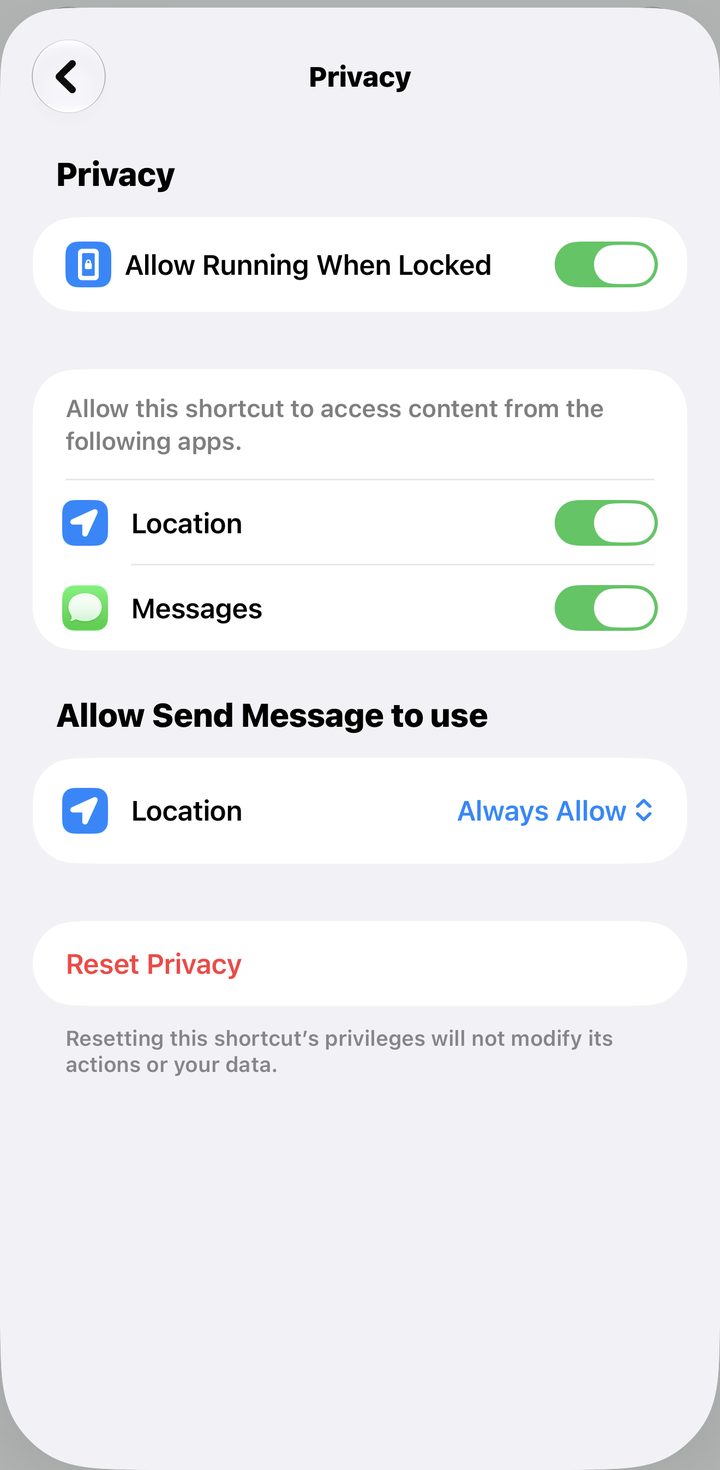
This is the setting that decides whether it works. Off, it waits for you to notice a notification and tap it, which is the whole thing you are trying not to depend on.
Part three · make sure it can wake you
Not a shortcut. A setting. Skip it and the alarm still fires, but the text that carries the address can get swallowed.
Open Settings, then Focus. Open each one you use, Sleep and Do Not Disturb at minimum, tap People, and add your kid under Allow Notifications From.
Test the real thing. Put your phone on silent, turn on Sleep focus, lock it, and set it on the counter. Have your kid tap the icon. Your phone should ring within a few seconds with their address in Messages.
Then agree on the rule that makes this safe. If they tap it and hear nothing back in two minutes, they call.
Fix · it never asked who to send to
Setup was skipped, so nobody is set to get the text. Delete Send The Bat Signal from their library and add it again from the link in step 1. This time answer the question and tap Done.
Fix · the gray banner says Configure "Sender"
The trigger is off until it knows whose texts to listen for. That is step 5. Tap Sender, pick your kid, and the banner goes away.
Fix · it fired on a normal text
Message Contains matches any text from your kid with the phrase in it. Change the phrase to something your family never says. It lives in two places, the Text action on their phone and the Message Contains field in your trigger, and they have to match.
Fix · it did not wake me up
Three usual causes. Sender was never picked, which is step 5. Or the shortcut is not allowed to run without asking, which is step 6 on iOS 27 or Run Immediately on earlier versions. Your kid is not on the allowed list in Sleep focus, which is part three. Or your phone was off or dead, and then nothing on this page can help, which is why the two minute rule exists.
Fix · they texted from a friend's phone and nothing happened
The trigger only listens to your kid's number. That is on purpose. Anyone can guess a phrase, and Any Sender means a stranger can ring your phone at 2 am. Keep it locked and tell your kid it has to come from their phone.
Good to know
The tap is the main path, but the phrase works typed too. If the shortcut fails for any reason, they can text you the words Bat Signal by hand from their phone and the alarm still fires.
Your kid's phone needs location on for Shortcuts. If the address in the text ever comes through blank, that is Settings, Privacy and Security, Location Services, Shortcuts.
This is a way to get a ride, not a safety net. It depends on one phone waking one person, and phones die. If someone in your life needs more than a friend's call, 988 is the number.
If you like this, you would like the morning text. Your kid's phone already talks to yours. The Family Operating System turns that around: every morning your phone sends each kid their own text with the day's plan and their chores, and if a chore is still open later it sends the follow up for you. The shortcuts install from links, you add your people, and it runs. One time purchase.
See The Family Operating System →