New · Handled
One tap for the thing you will otherwise carry around all day.
You are standing somewhere with no hands free and a thought arrives. Text the coach back. Email the teacher. Remember the permission slip. You tell yourself you will do it later, and then later you are doing something else and the thought is still there, taking up room.
This one is a shortcut rather than a build, so there is nothing to make. You tap a link and it is on your phone. Put it on your home screen and it is one tap away the moment a thought turns up. It asks how the thing should be handled, and you pick: send a text, send an email, remind me, or add to calendar.
The point is not that it does the thing faster. It is that the thought stops being yours to hold.
Part one · put it on your phone
Tap the link below on the iPhone you want it on. Shortcuts opens and shows you what it does.
Get the Handled shortcut
Scroll to the bottom and tap Add Shortcut. It is now in your library.
Part two · put it where you will reach for it
Open the shortcut, tap the i at the bottom, and tap Add to Home Screen, the first item on the Details sheet. On iOS 26 or earlier, press and hold the shortcut in your library, tap Share, then Add to Home Screen.
Name it something you will recognize in a hurry. Mine says Handled.
Tap Add. It sits on your home screen like any other app.
Part three · point it at your own lists
Do this once before the first time you use it. Until you do, Remind me is looking for my list, not yours.
In your library, tap the three dots on Handled to open it.
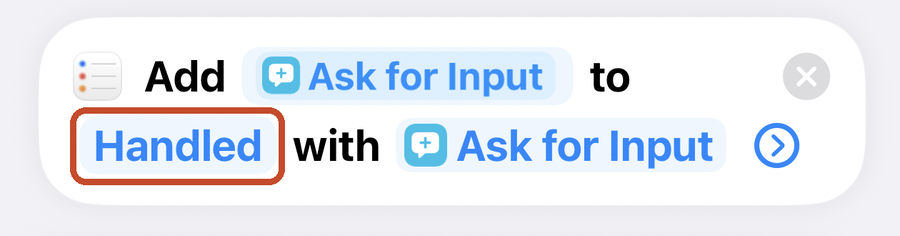
Find the Remind me section. In the Add action, tap the list after the word to and choose the Reminders list you want these in.
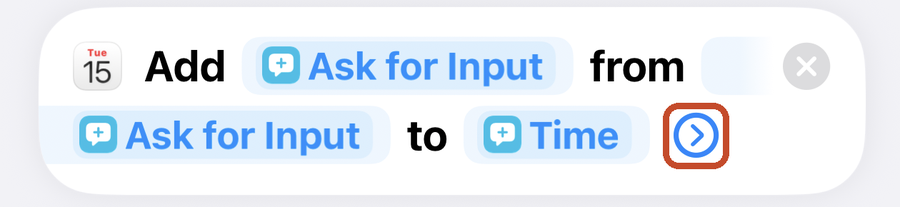
Find the Add to calendar section. Tap the arrow at the end of that Add action, tap Calendar, and choose the one you want. If you skip this, events go to your default calendar.
Tap Done.
Good to know
It asks every time rather than remembering what you picked last, which is deliberate. The same thought is a text on Tuesday and a calendar event on Thursday.
Reminders go to the list you picked in step 7. Events go to the calendar you picked in step 8, or your default calendar if you skipped it. If you share a list with someone, point it at that one and the thought lands with both of you.
Texts and emails open ready to send rather than sending on their own, so you are always the one who hits send.
If "email the teacher" is the thought that keeps showing up, this is the shortcut for it. School Mail Triage reads the long email from school, pulls out every date, and puts each one on your calendar with a reminder. It works on a photo of the paper handout too. One time purchase.
See School Mail Triage →