Make the list and share it
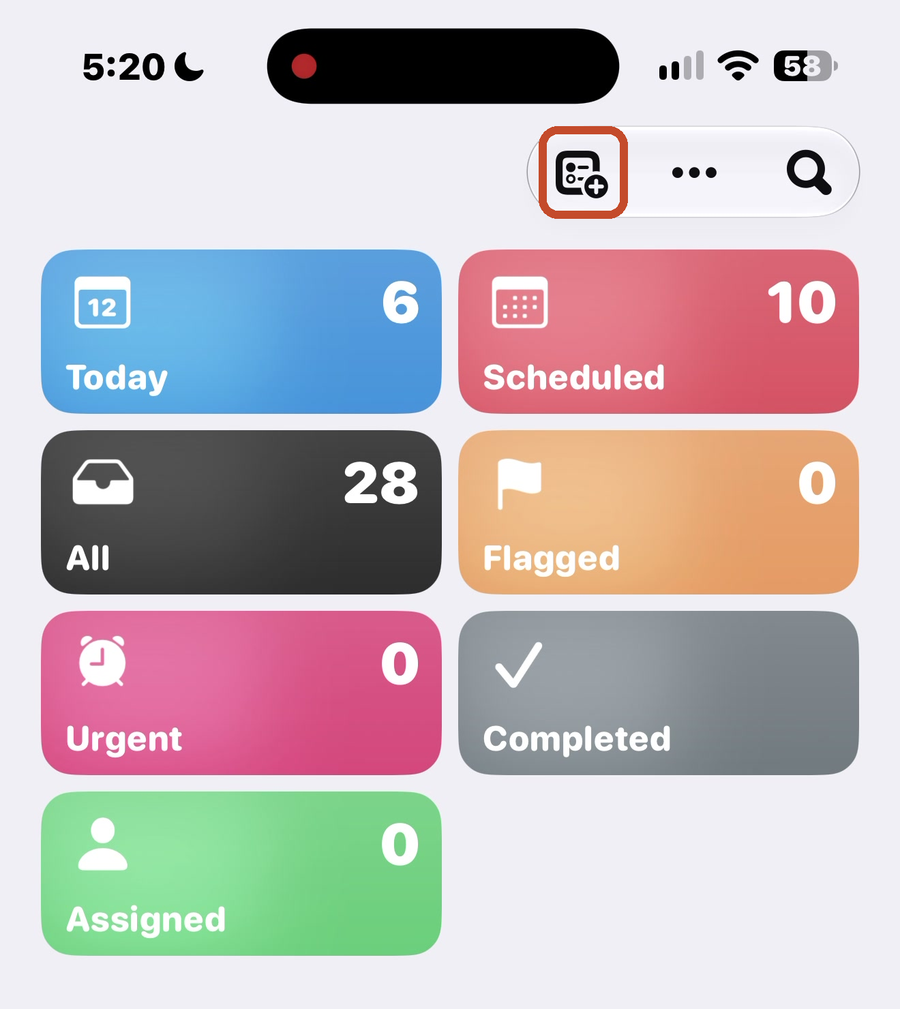
- Open Reminders and tap the Add List button at the top.
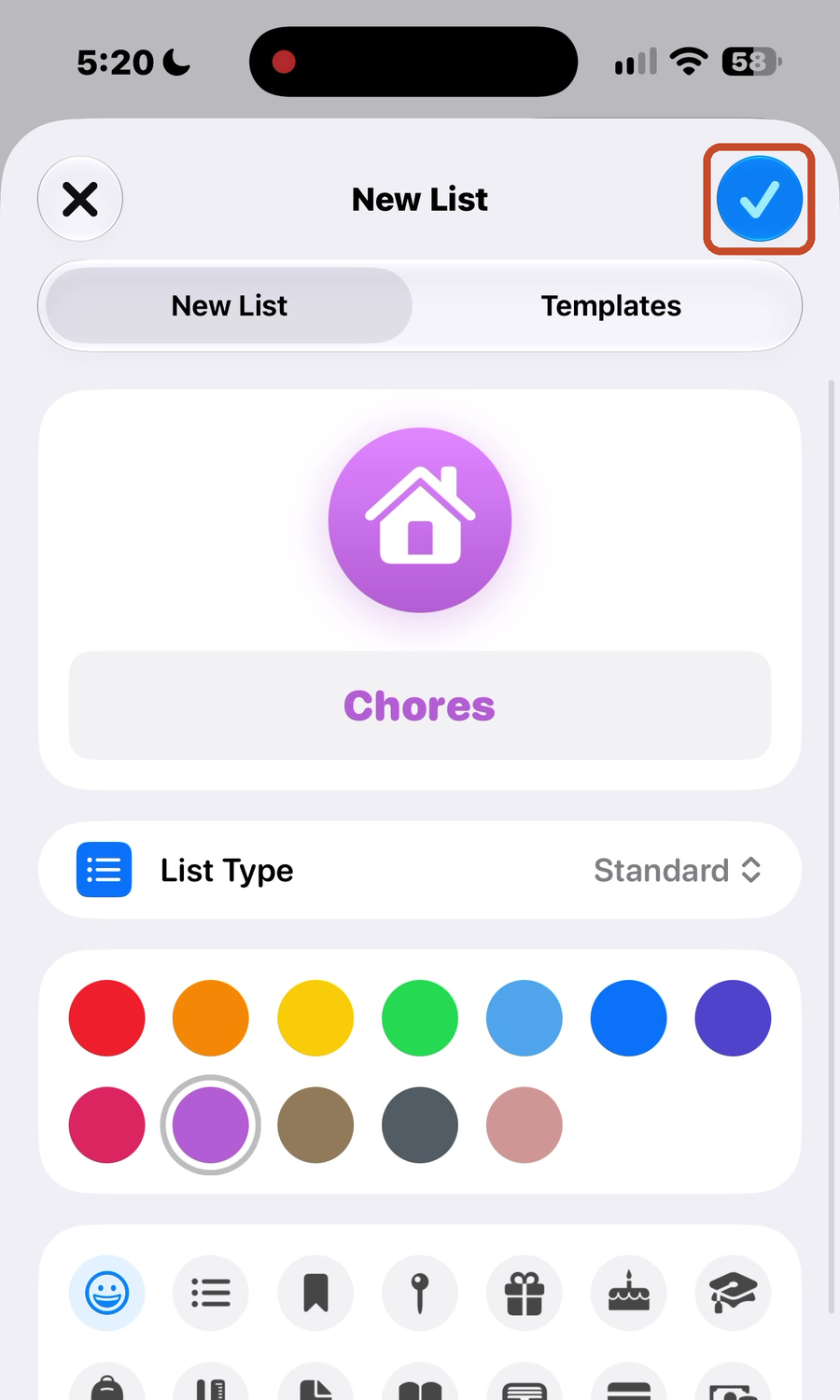
- Name the list, pick a color and an icon, and tap the check.
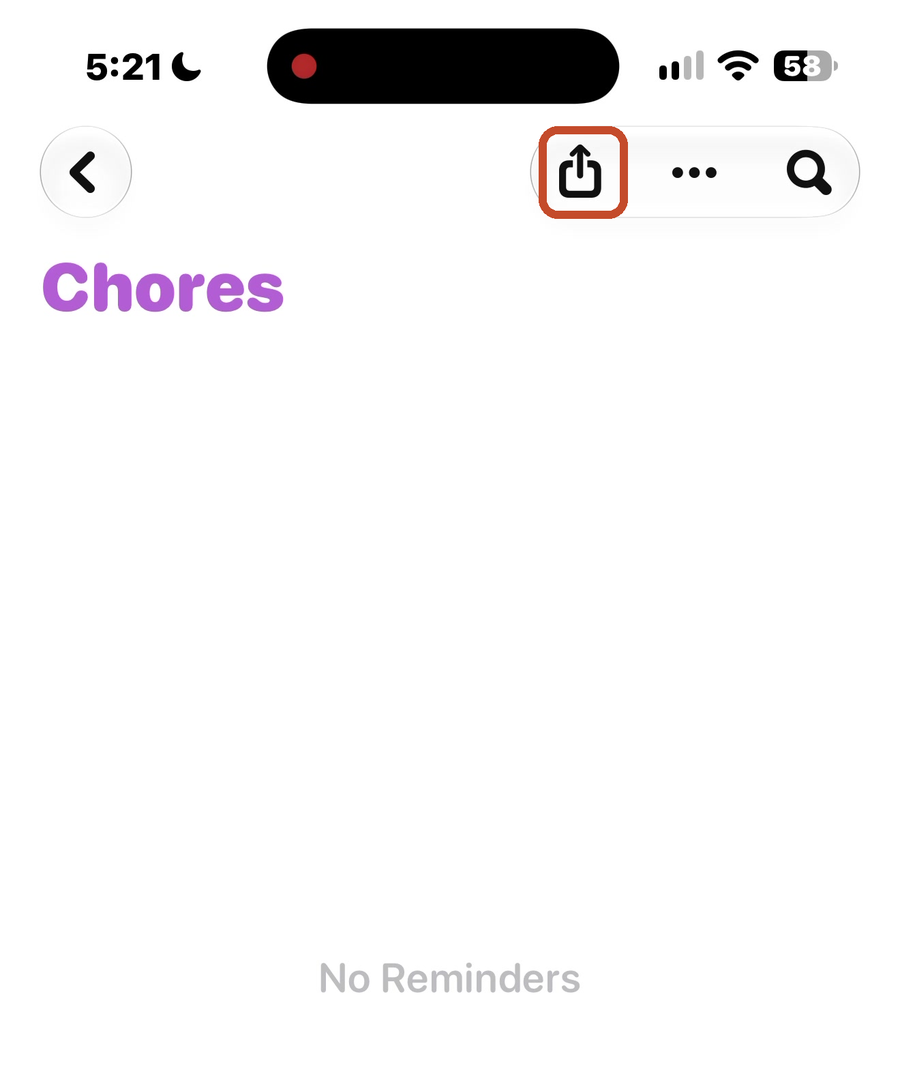
- To share it, open the new list and tap the Share button at the top.
- Tap the line under the list's name to choose who can edit.
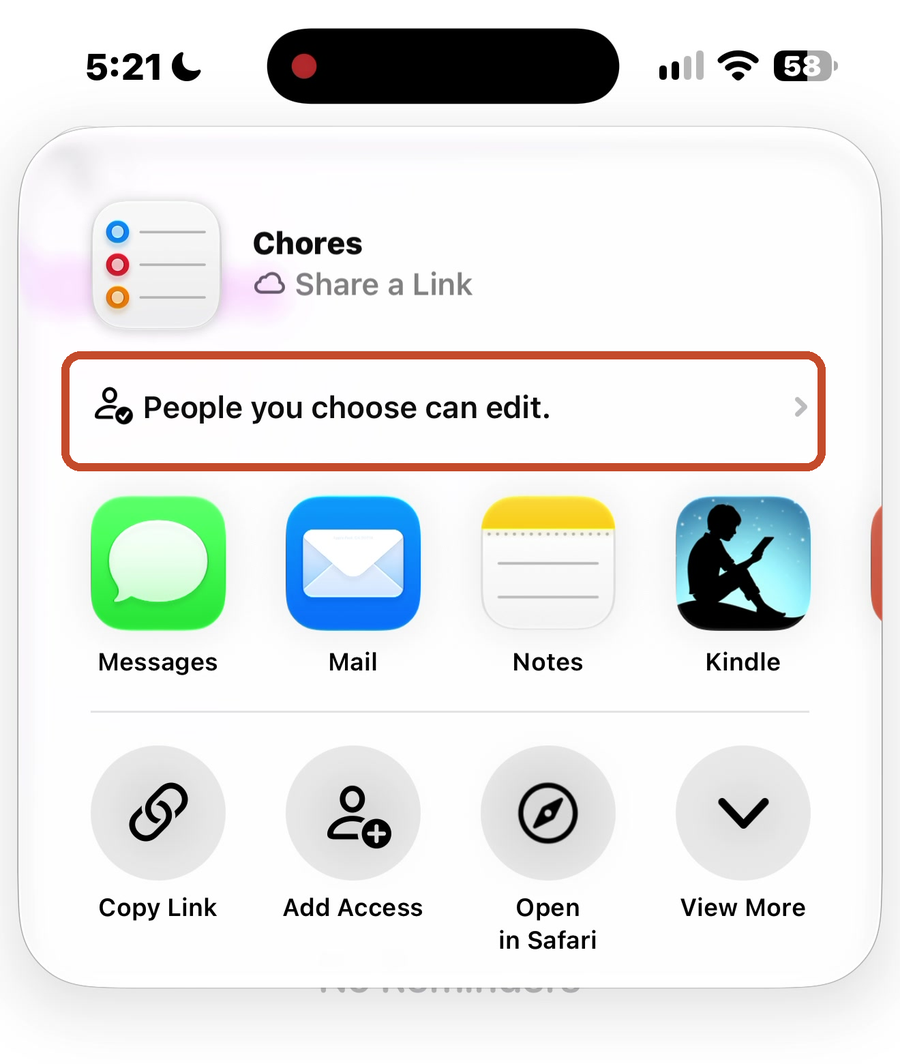
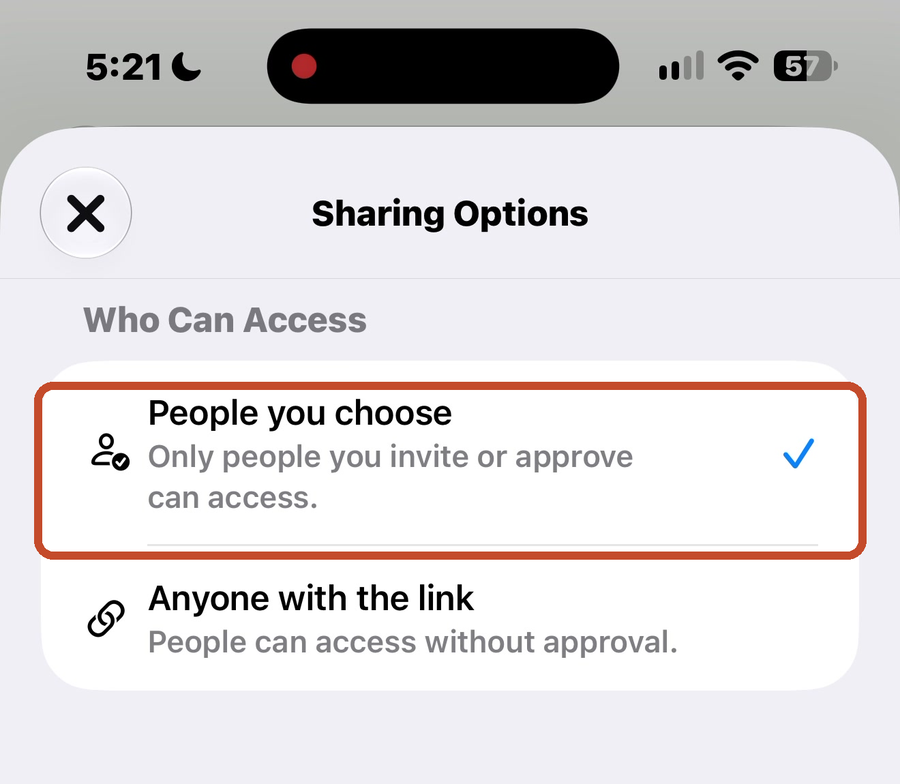
- Choose People you choose, so only the people you invite can get in, or Anyone with the link.
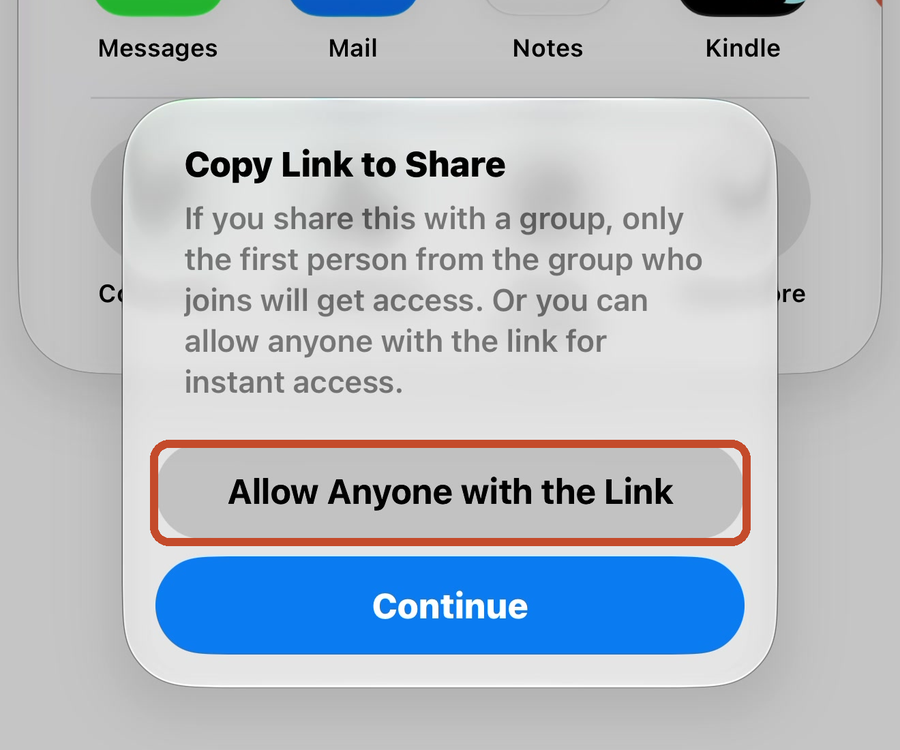
- Tap Messages and pick the person or the group text. If you're sending it to a group, tap Allow Anyone with the Link — otherwise only the first person in the group who opens it gets access.
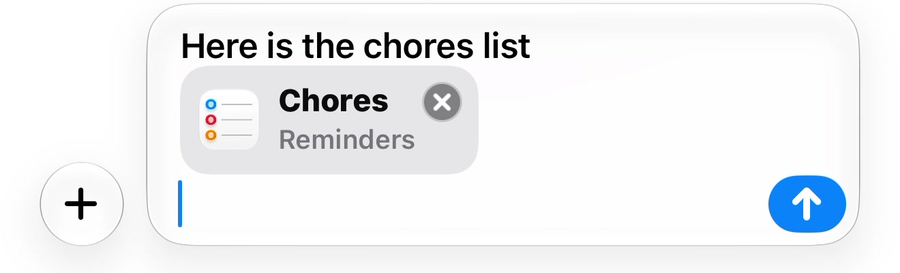
- Send the message. The list goes as a link they tap to join.
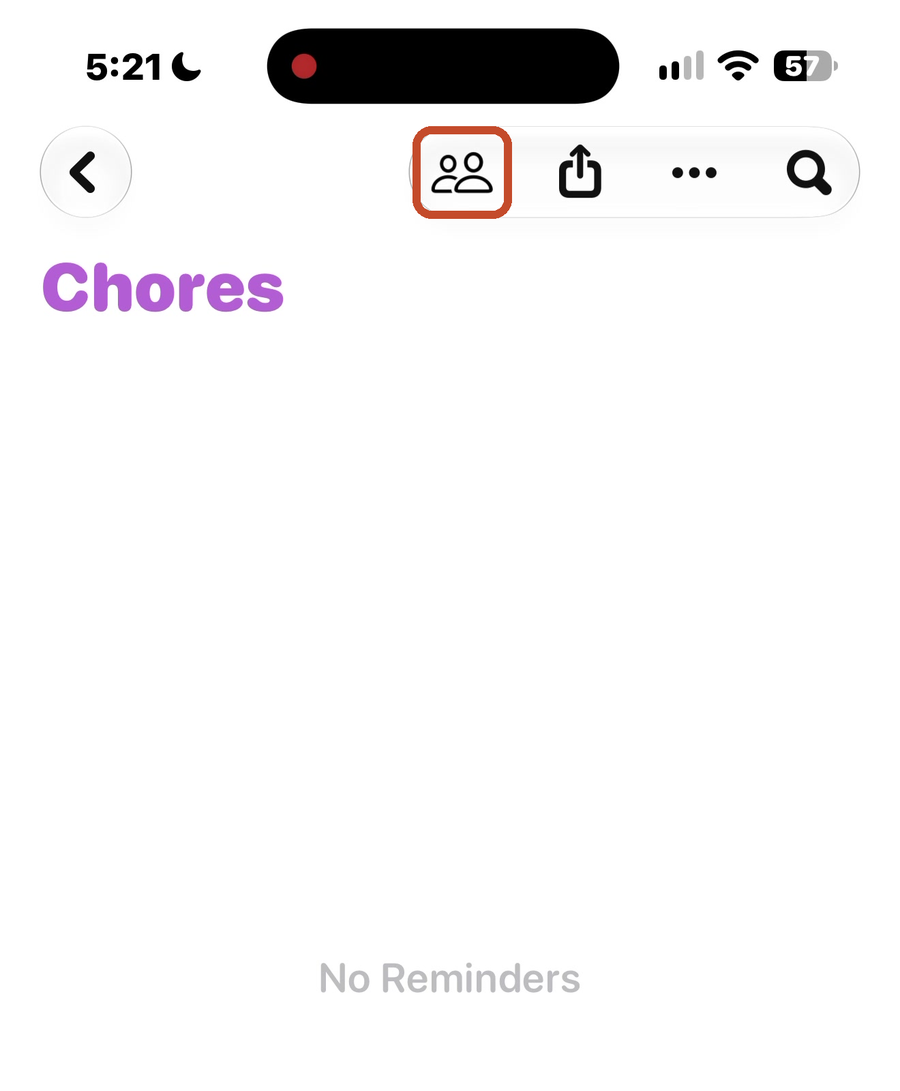
- Once the list is shared, a people icon shows at the top of it.
Name it what you say out loud
Siri adds to a list by name, so give the list a name you'd actually say. In Cassie's house the store list is called Need From The Store, and "add milk to Need From The Store" puts it there.
Good to know.
Anyone you share the list with can add items and check them off.