Free automation · Tap Twice, Done

Two taps on the back of your phone, and the menu comes to you.

Tap Twice, Done is one menu with four jobs behind it. Kid Info copies a student ID, a birthday, or an insurance number so you can paste it straight into the form in front of you. Calendar adds an appointment or shows you today. Remember This saves a reminder or puts something on the grocery list. Hand It Off sends one of the texts you type all the time.

It opens with Back Tap — two taps on the back of your iPhone, from whatever app you're already in.

What it does

Two taps on the back of your iPhone open one menu with four choices. Kid Info copies a student ID, a birthday or an insurance number. Calendar adds an appointment or shows today. Remember This saves a reminder or adds to the grocery list. Hand It Off sends one of the texts you send every day.

What you need

An iPhone 8 or later, and a list in Reminders for groceries.

One email, the whole library

Unlock every step, free.

Drop your email and the full step-by-step for every automation opens right here on this page. You'll also be first to get each new one as I add it.

No spam. Unsubscribe anytime. The steps stay on this page for you.

✓ You're in. Every step is below, a copy is on its way to your inbox, and new automations will show up here.

Running iOS 27?

Two things look different in Shortcuts. When you create a new shortcut, the first screen asks you to describe it in words. Skip that and tap Edit in the top right to get to the action list the steps below use. Some phones skip the describe screen and land on the action list straight away. And automations no longer have their own tab. The trigger now sits at the top of the shortcut itself, as the first block. The steps below are written for iOS 27, with a short note under each trigger step for iOS 26 and earlier.

If you set up before updating, nothing changes. Your automations moved over on their own. The steps below build everything by hand so everyone gets the same result, whichever version you are on.

New · Tap Twice, Done

Two taps on the back of your phone, and the menu comes to you.

Tap Twice, Done is one menu with four jobs behind it. Kid Info copies a student ID, a birthday, or an insurance number so you can paste it straight into the form in front of you. Calendar adds an appointment or shows you today. Remember This saves a reminder or puts something on the grocery list. Hand It Off sends one of the texts you type all the time.

It opens with Back Tap — two taps on the back of your iPhone, from whatever app you're already in.

Build 10 min In Shortcuts + Settings Trigger Back Tap

You need: an iPhone 8 or later, and a list in Reminders for groceries.

Part one · get the shortcut

1

Open this page on your iPhone. Tap Download, then Add Shortcut. It lands in the Shortcuts app as Tap Twice, Done - The Family OS.
Download

2

Open it in Shortcuts, then tap Edit in the top right.
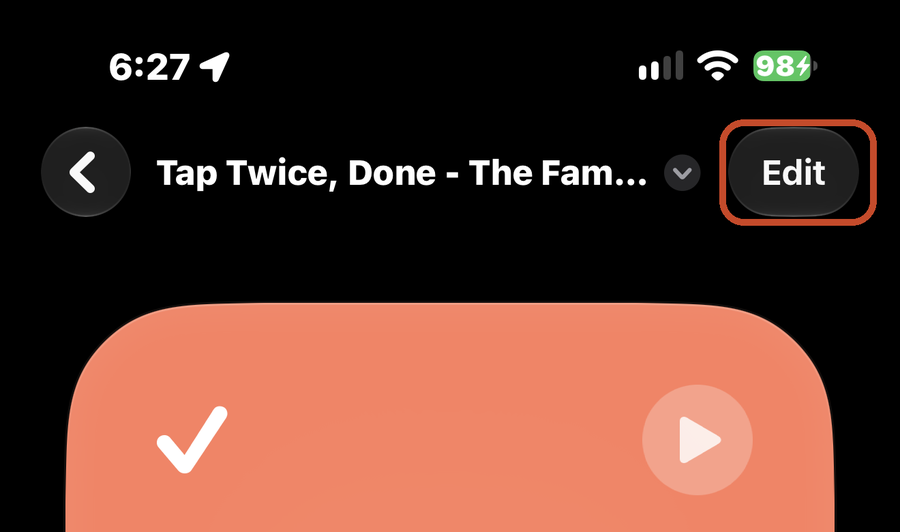
The top of the Tap Twice, Done shortcut in Shortcuts with the Edit button in the top right marked

Part two · make it yours

3

Start with Kid Info. Under the yellow note that says Start here, there are three text boxes with example kids in them. Replace each example with one of yours. The name goes first, then each item as a label, a colon, and the value, with a comma between items — Kid 1, student ID: 48213, birthday: 3/14/2015, insurance ID: XYZ123. Leave the orange Kid 1, Kid 2 and Kid 3 variables where they are.
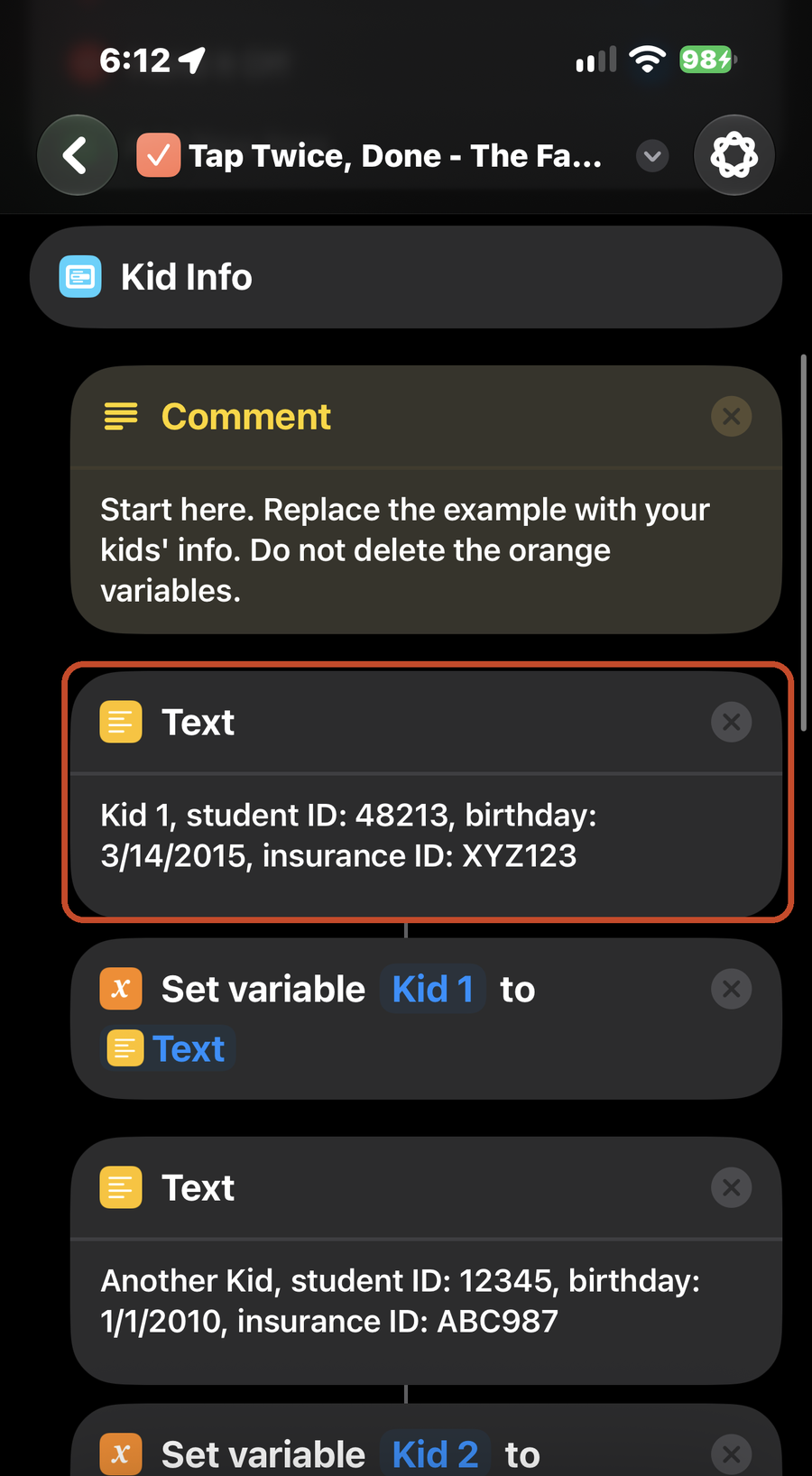
The Kid Info section in the editor: a yellow comment that says Start here, then a Text box reading Kid 1, student ID: 48213, birthday: 3/14/2015, insurance ID: XYZ123, marked, with a Set variable Kid 1 action under it
4

Scroll down to Remember This. Remind Me asks which list every time you use it. To send reminders to the same list every time, tap the blue List and pick one. Add to Grocery List goes to a list named Groceries — tap the blue list name and pick yours.
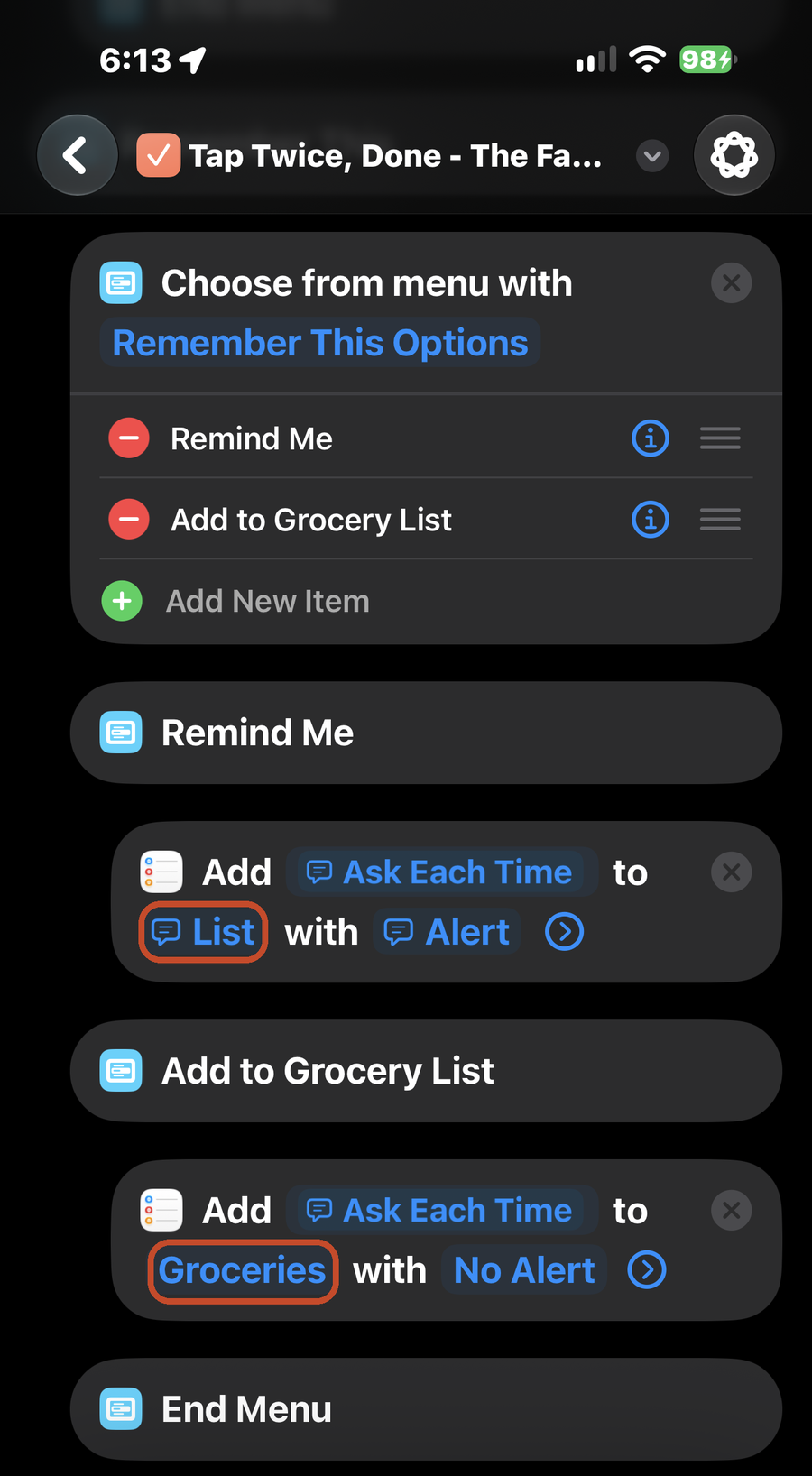
The Remember This section: the Remind Me action with the blue word List marked, and the Add to Grocery List action with the list name Groceries marked

Each time you use Remind Me, it asks what to remember, then whether you want an alert. Say no and it just goes on the list. Say yes and you choose how it comes back — when you leave a place, when you arrive at one, when you're messaging someone, or at a date and time.

5

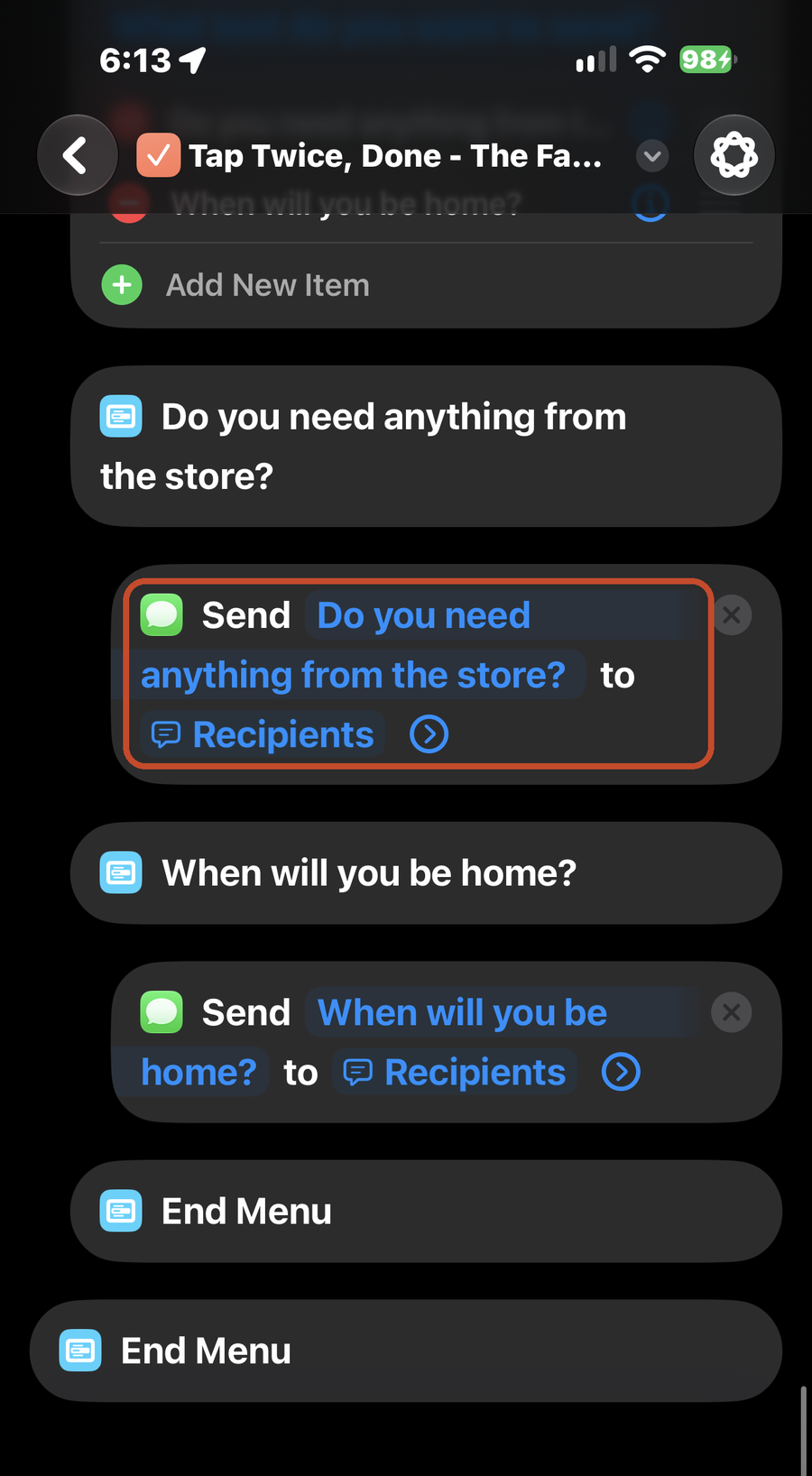
Scroll down to Hand It Off. Two texts are already in there: Do you need anything from the store? and When will you be home? To change one, retype it in the menu and again in the Send action underneath it. To send to the same person every time, tap Recipients and choose them. Left alone, it asks who each time.
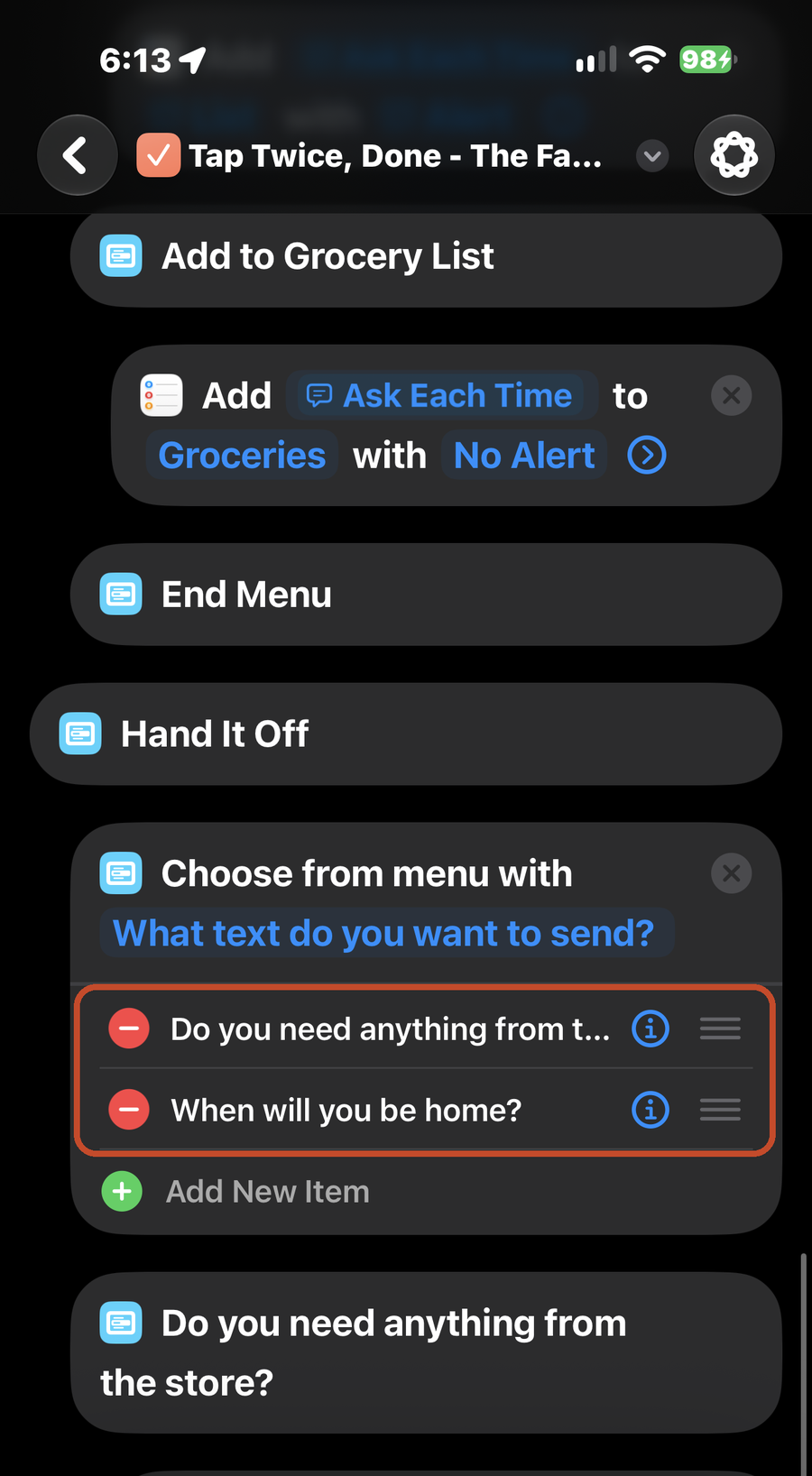
The Hand It Off menu in the editor with its two items marked: Do you need anything from the store? and When will you be home?
The Send action under the first text, reading Send Do you need anything from the store? to Recipients, marked
6

Tap the play button at the bottom and try each of the four. The first time through, your phone asks permission for Calendar, Reminders and Messages, and it asks before it copies to your clipboard. Allow each one.

Part three · set up Back Tap

7

Open Settings. Tap Accessibility, then Touch.
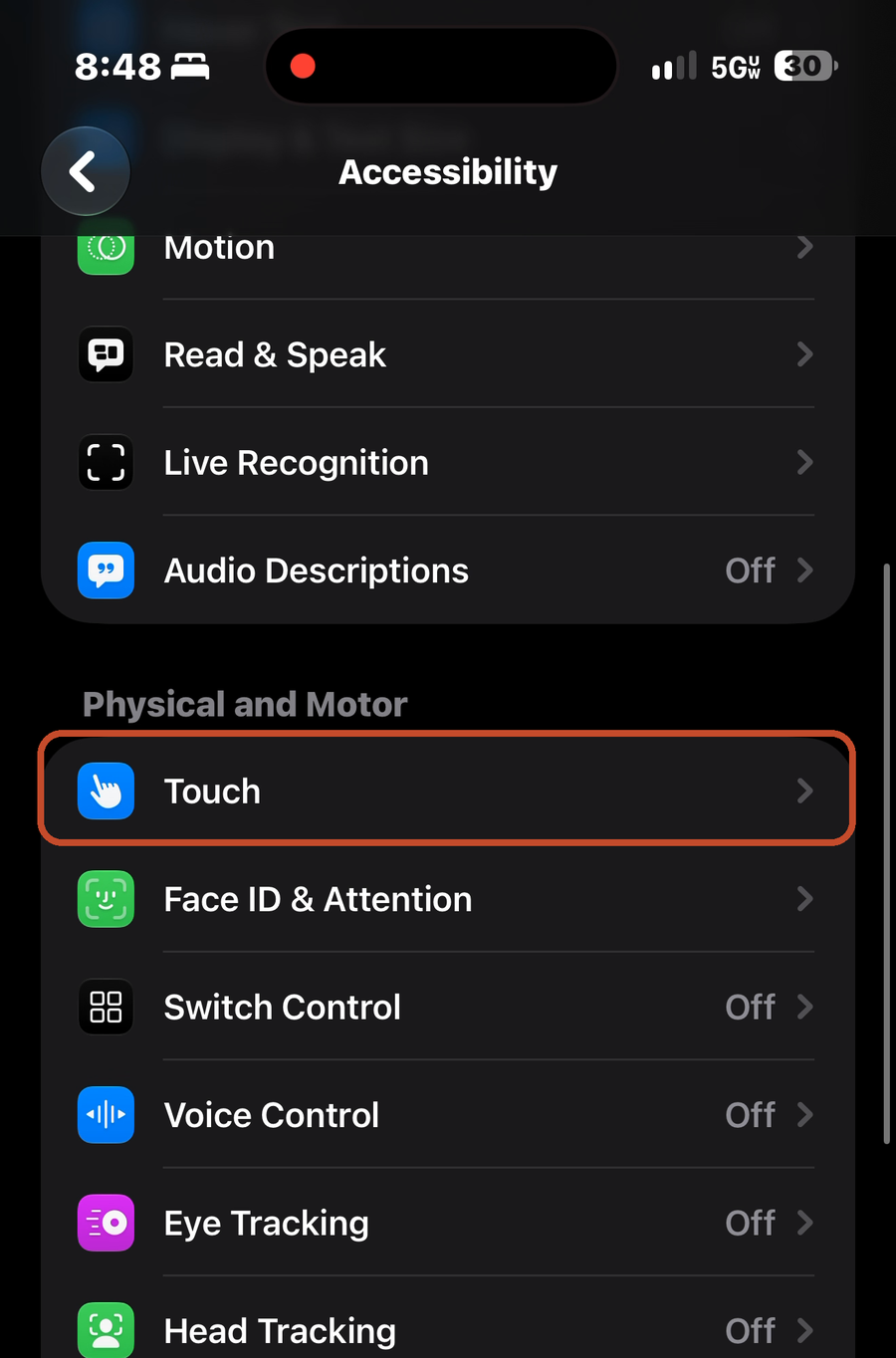
The Accessibility screen in Settings with Touch marked under Physical and Motor
8

Scroll to the bottom and tap Back Tap.
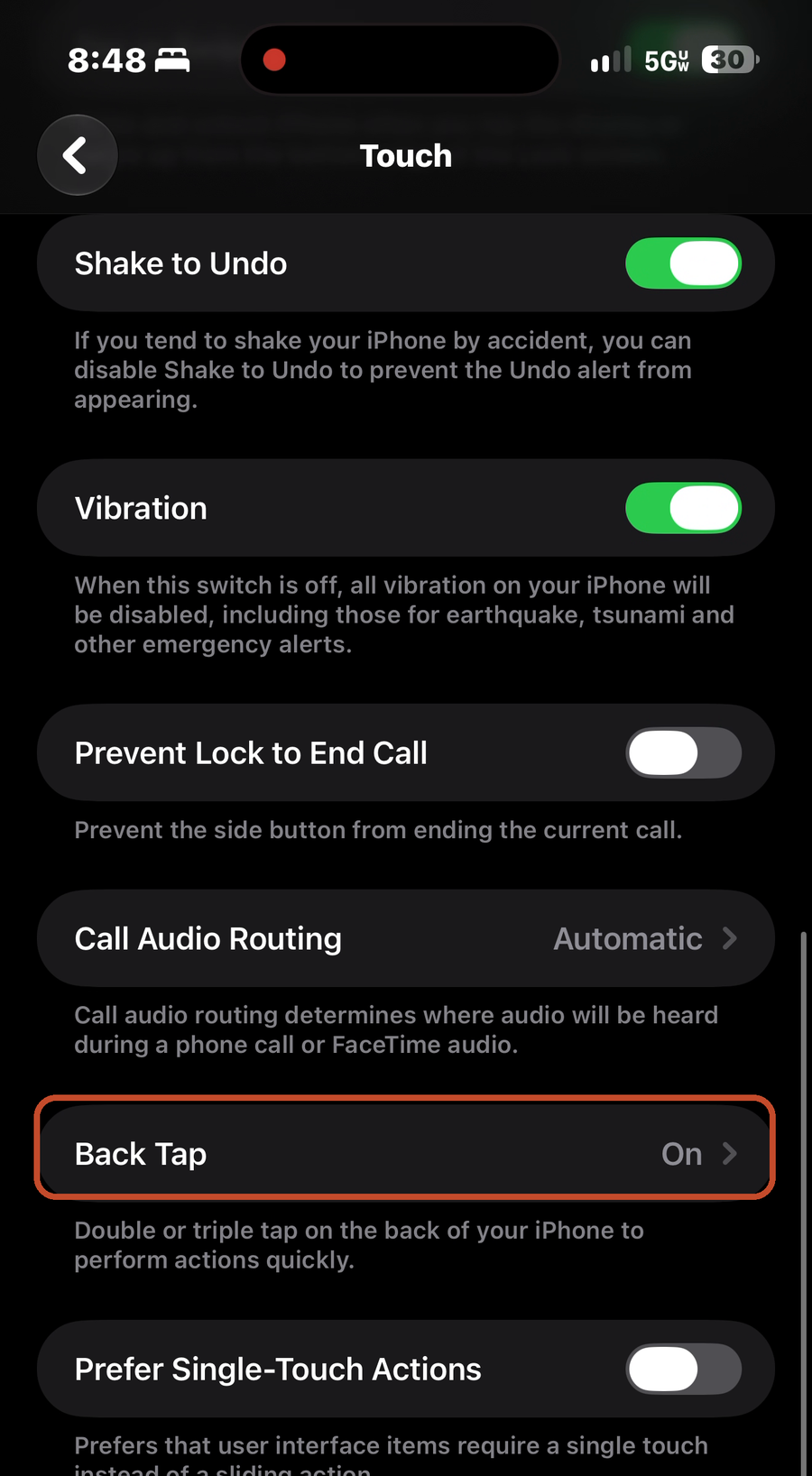
The Touch screen in Settings with Back Tap marked near the bottom
9

Tap Double Tap.

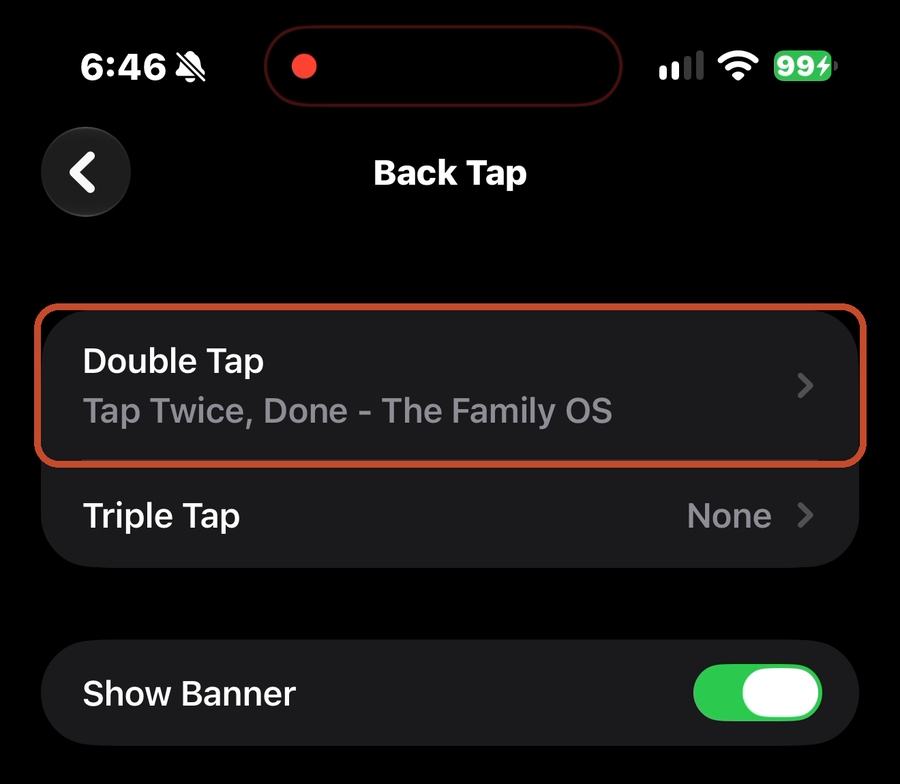
The Back Tap screen with Double Tap marked, set to Tap Twice, Done - The Family OS, and Triple Tap one row below it
10

Tap Shortcuts, then tap Tap Twice, Done - The Family OS.
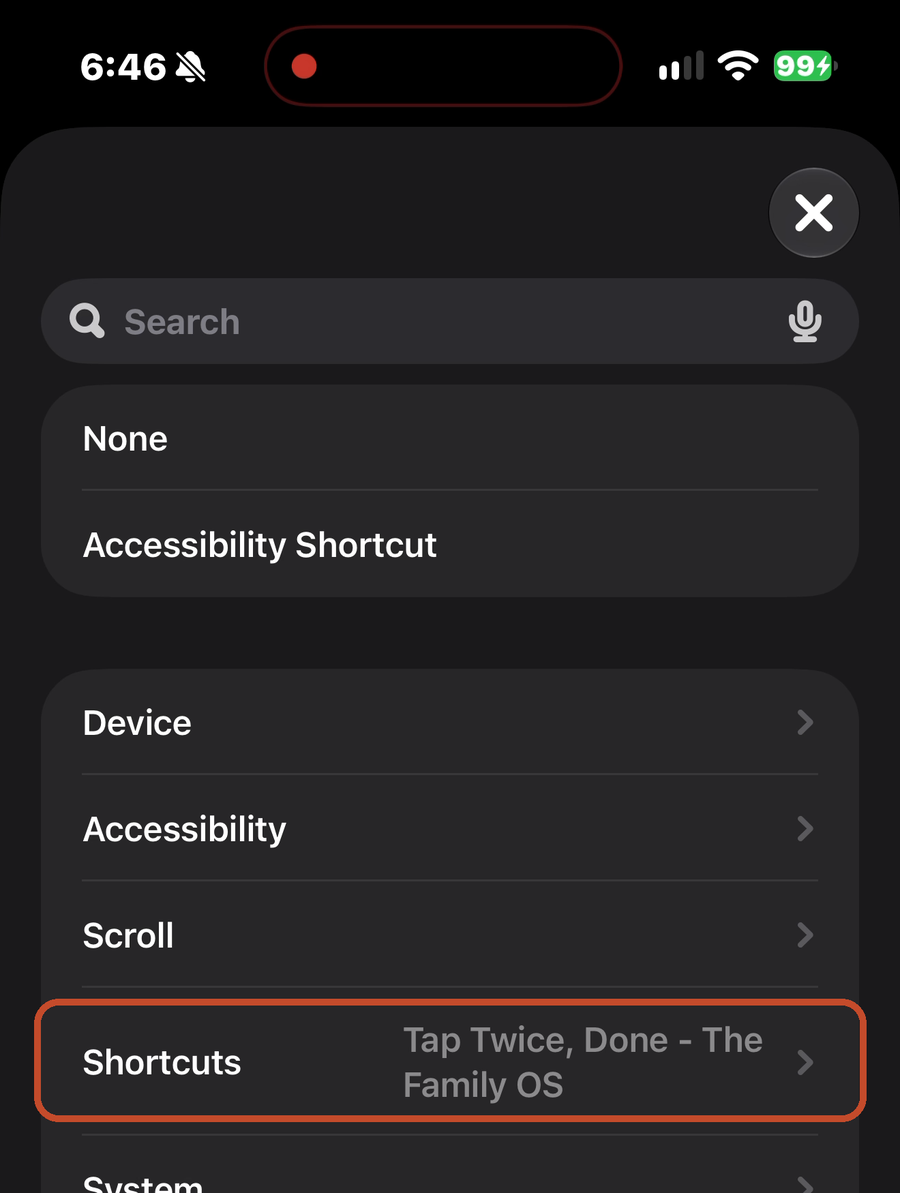
The list of things Double Tap can do, with the Shortcuts row marked
The row for Tap Twice, Done - The Family OS with a checkmark next to it
11

Go back to your home screen and tap the back of your phone twice, firmly, near the middle. The menu opens.
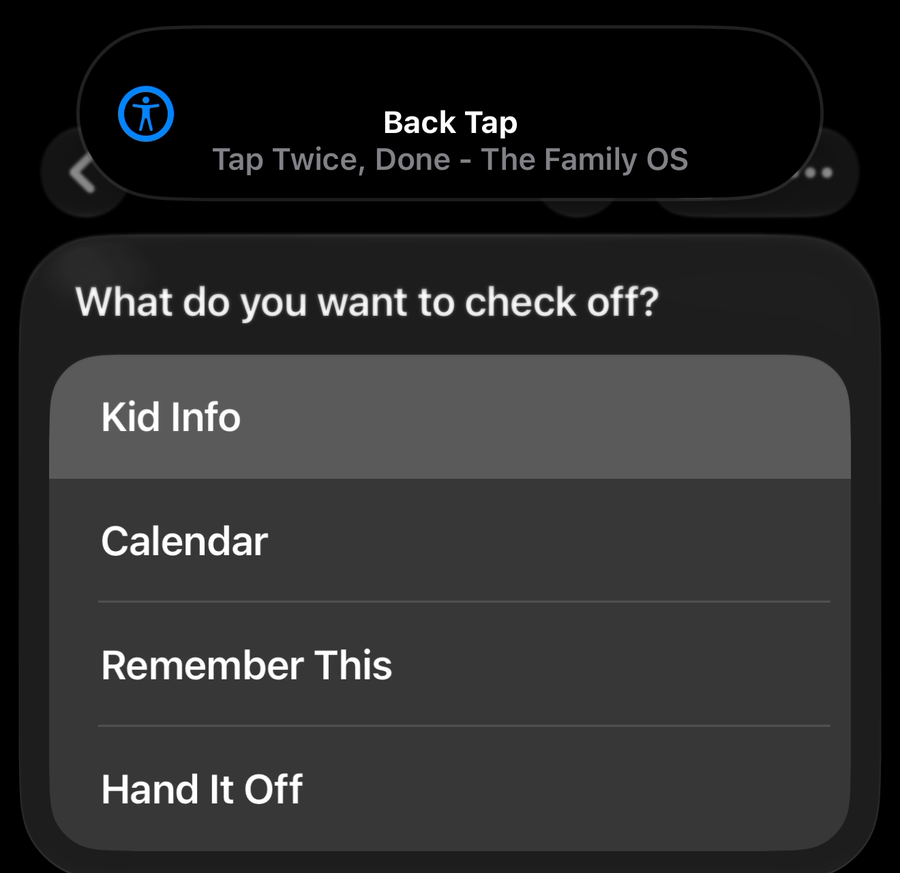
A Back Tap banner at the top of the screen and the menu under it asking What do you want to check off? with Kid Info, Calendar, Remember This and Hand It Off

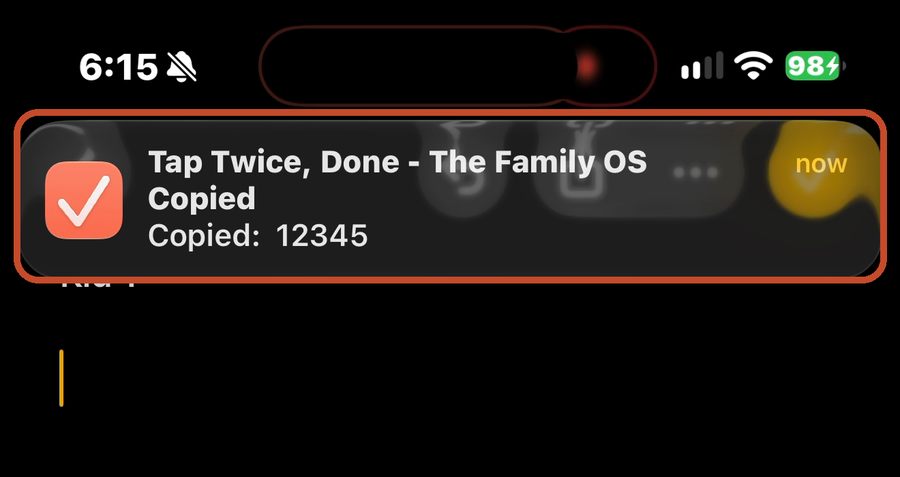
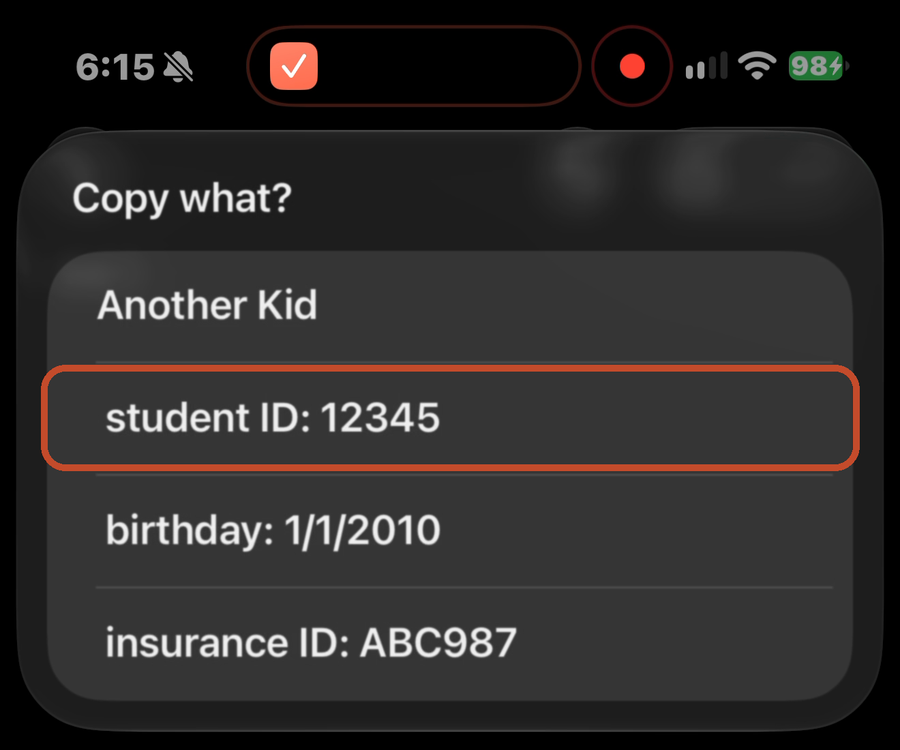
Pick Kid Info, pick a kid, pick the item. A banner tells you what was copied, and it's ready to paste.
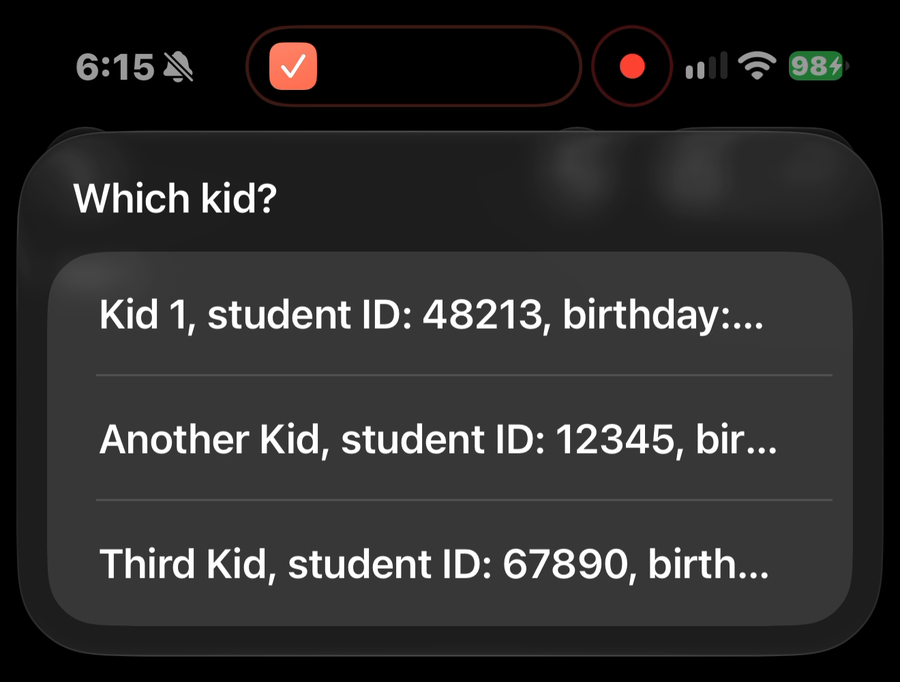
The Which kid? menu listing three example kids
The Copy what? menu for Another Kid with student ID: 12345 marked, above birthday and insurance ID
A banner from Tap Twice, Done - The Family OS that says Copied: 12345

Good to know

Commas are what separate one item from the next, so keep them out of the values. Write a birthday as 3/14/2015.

What gets copied is whatever comes after the last colon, so keep colons out of the values too. A pickup time goes in as 315, and a web address won't copy whole.

Fewer than three kids? Delete the extra text box and the Set variable under it, then delete that kid's orange variable from the list box below. More than three? Add a text box and a Set variable for each one, and add the new variable to the same list box.

If the menu opens when you set your phone down, switch it to Triple Tap. Same screen, one row down.

Back Tap works through most cases. If yours is thick and nothing happens, tap harder or try it with the case off.

Kid Info is saved inside the shortcut on your phone, readable by anyone holding it unlocked. Put in what you'd be comfortable having in your Notes app.

See every free automation in the library →

Kid Info for the forms. The rest of the week for the phone.

The Family Operating System handles what comes every day. Each person gets a text every morning with their own day in it, and chore reminders go to the kid who owns the chore.

See The Family Operating System →