New · Today Drained Me
Plug your phone in at night and it says something back.
The moment your phone connects to a charger, it plays one sound — a clip you saved, a voice memo, your kid saying goodnight. No tapping, no notification, nothing to remember. Plugging in is the whole trigger.
If you use Apple Music, it installs from a link and asks you one thing, which song. No Apple Music, build it with any sound you like in about four minutes. Both are below.
Part one · with Apple Music
The link brings the trigger with it. You pick the song.
Tap the link below on your iPhone and tap Add Shortcut. It asks What song do you want to play? Tap it and pick a song from your Apple Music library.
Get the Today Drained Me shortcut
Only songs in your library show up. If the one you want is not there, add it to your library in Music first, then come back.
Open Today Drained Me from your library. If you see a summary with a Describe a change box, tap Edit in the top right. The first block reads When power Connects.
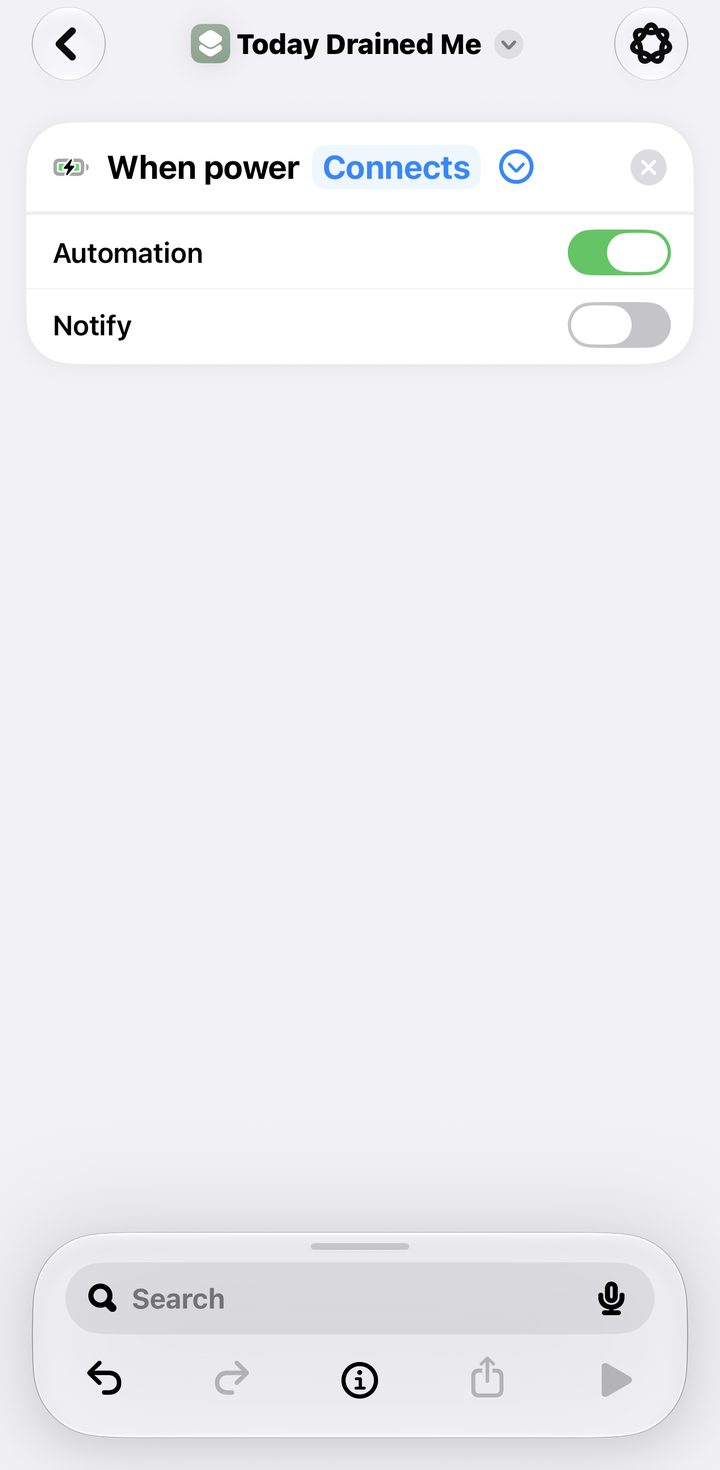
No trigger block at the top? Your iPhone is on iOS 26 or earlier, which leaves the trigger out of the link. Tap Automation at the bottom of the screen, then the plus, then Charger. Leave Is Connected selected, choose Run Immediately, turn Notify When Run off, tap Next, then under Do pick Today Drained Me and tap Done. Skip step 3.
Still in the shortcut, tap the i at the bottom of the screen, then Privacy, and check Allow Running When Locked is on. Tap the back arrow, then the checkmark.
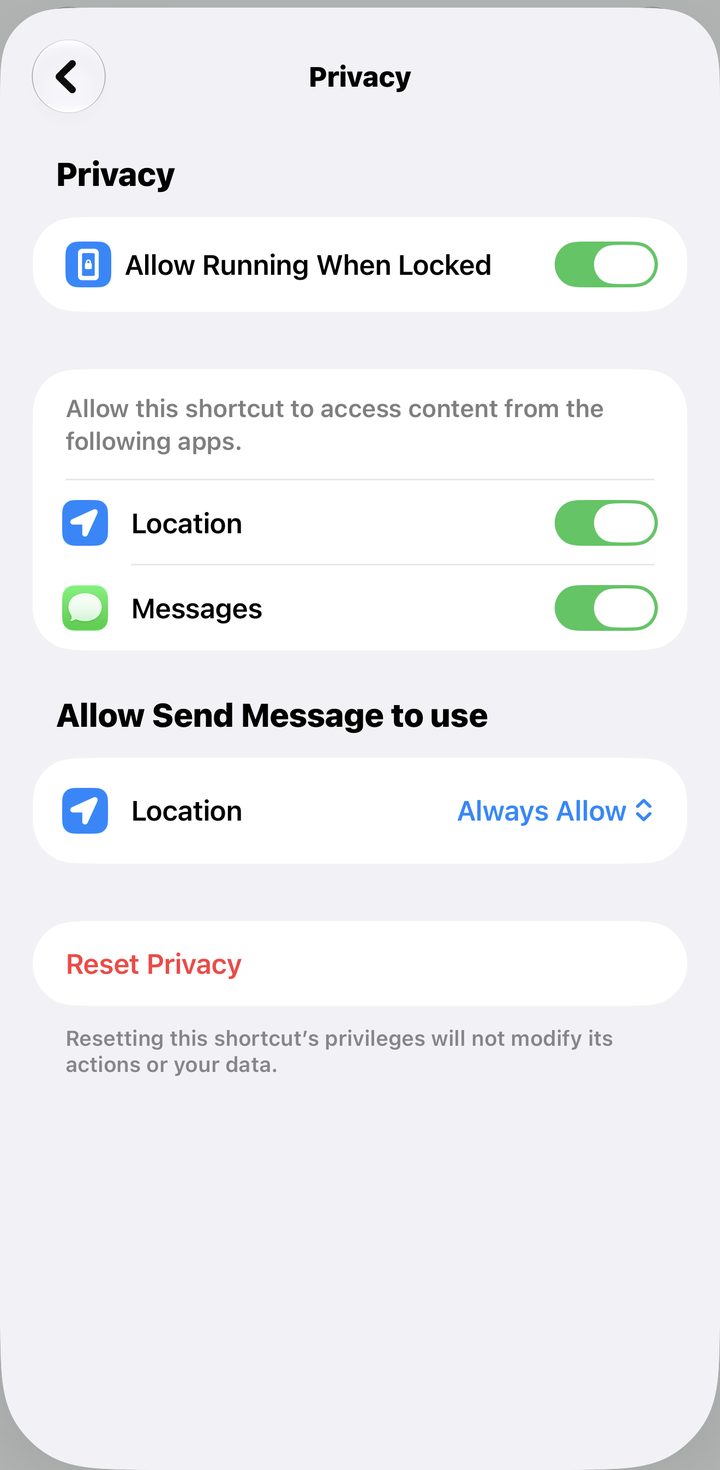
Plug your phone in. That's the test. You are done, skip the rest.
Part two · no Apple Music, get a sound
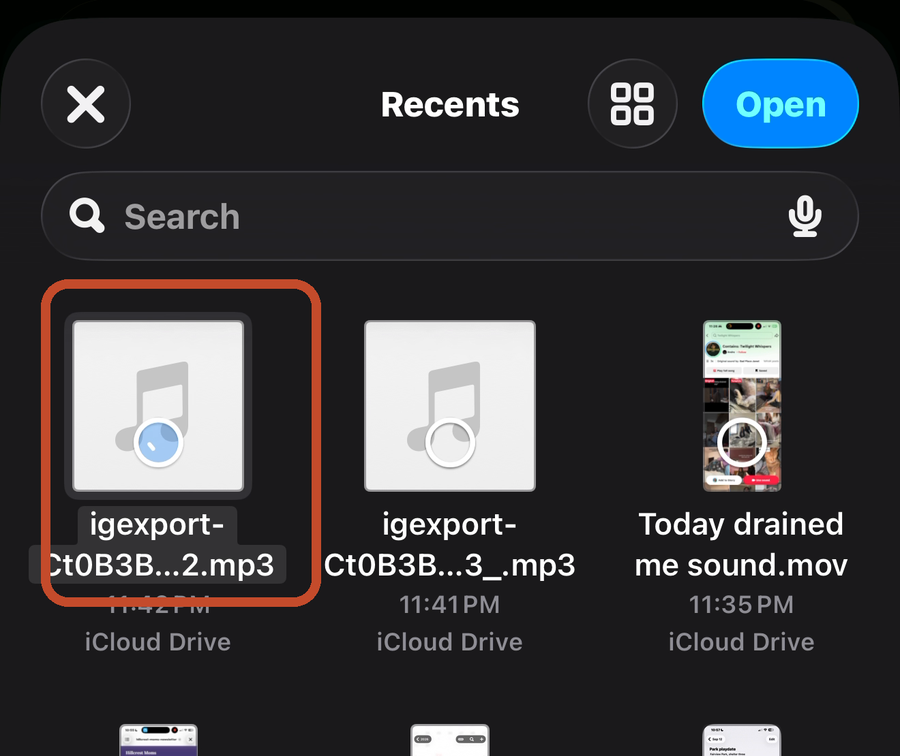
You need one sound file in Files, under iCloud Drive, Downloads. This part gets it there. If you already have one, skip to part three.
From a reel.
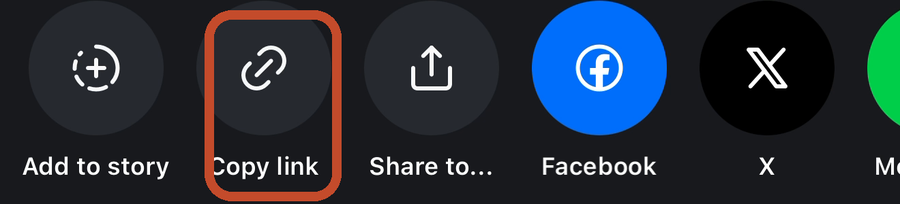
Find a reel with the sound you want. Tap Share, then Copy link.
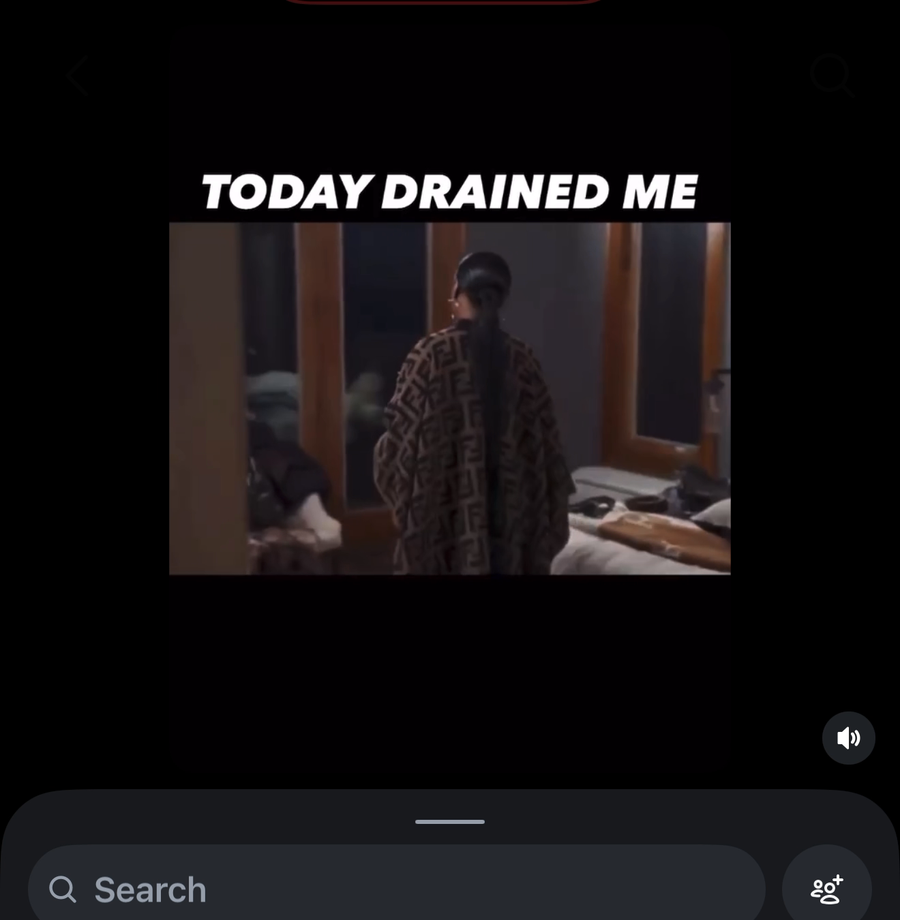
Open Safari and go to igexport.com/en/audio-download. Paste the link in the box and tap Convert to MP3.
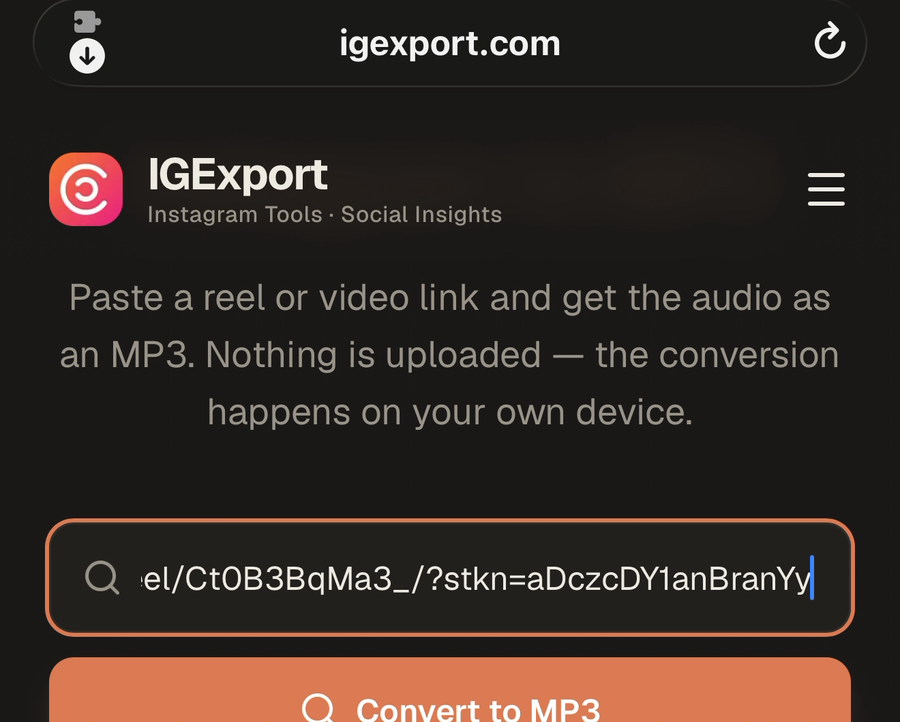
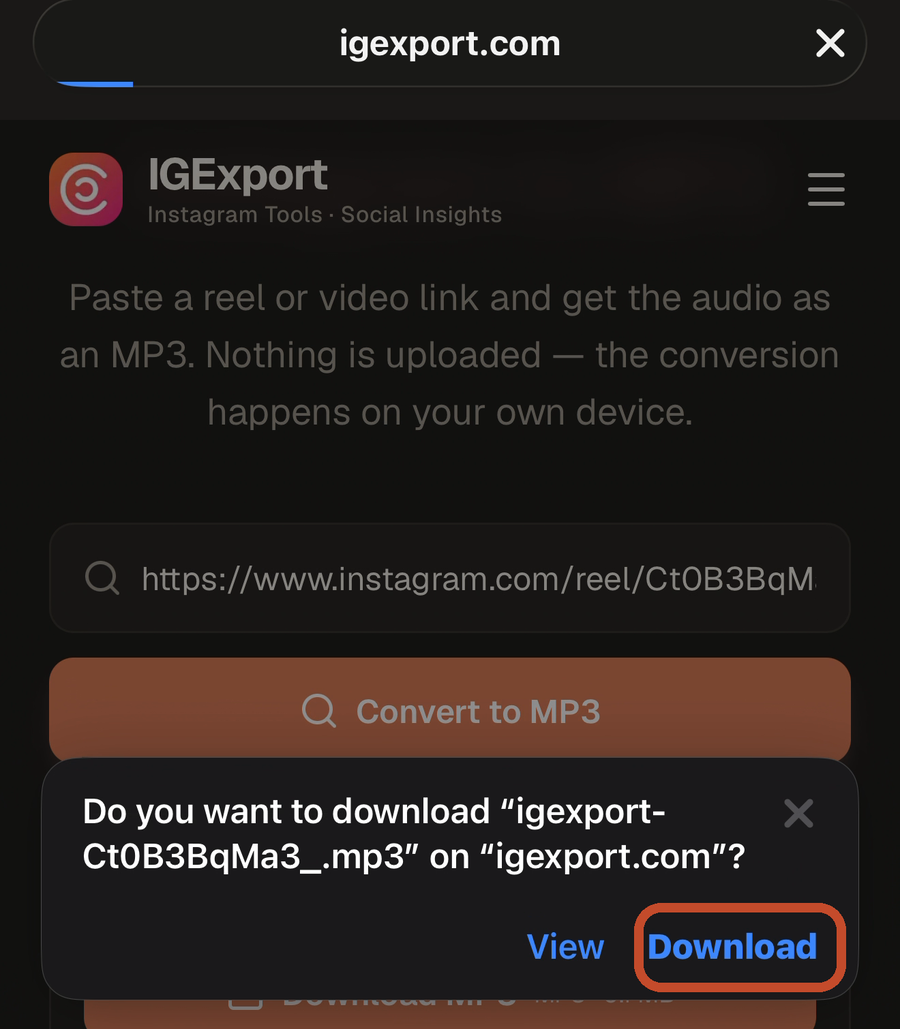
Tap Download MP3. When Safari asks, tap Download. The file is now in iCloud Drive, Downloads — that's where Files keeps it.
From a voice memo.
Record it in Voice Memos. Tap the three dots, then Share, then Save to Files. Choose iCloud Drive, then Downloads, then Save.
Part three · build it
Open Shortcuts and tap the plus to create a new shortcut. If you see a screen asking what you want the shortcut to do, tap Edit in the top right. If you land straight on the action list, you are already there. Some phones skip the describe screen.
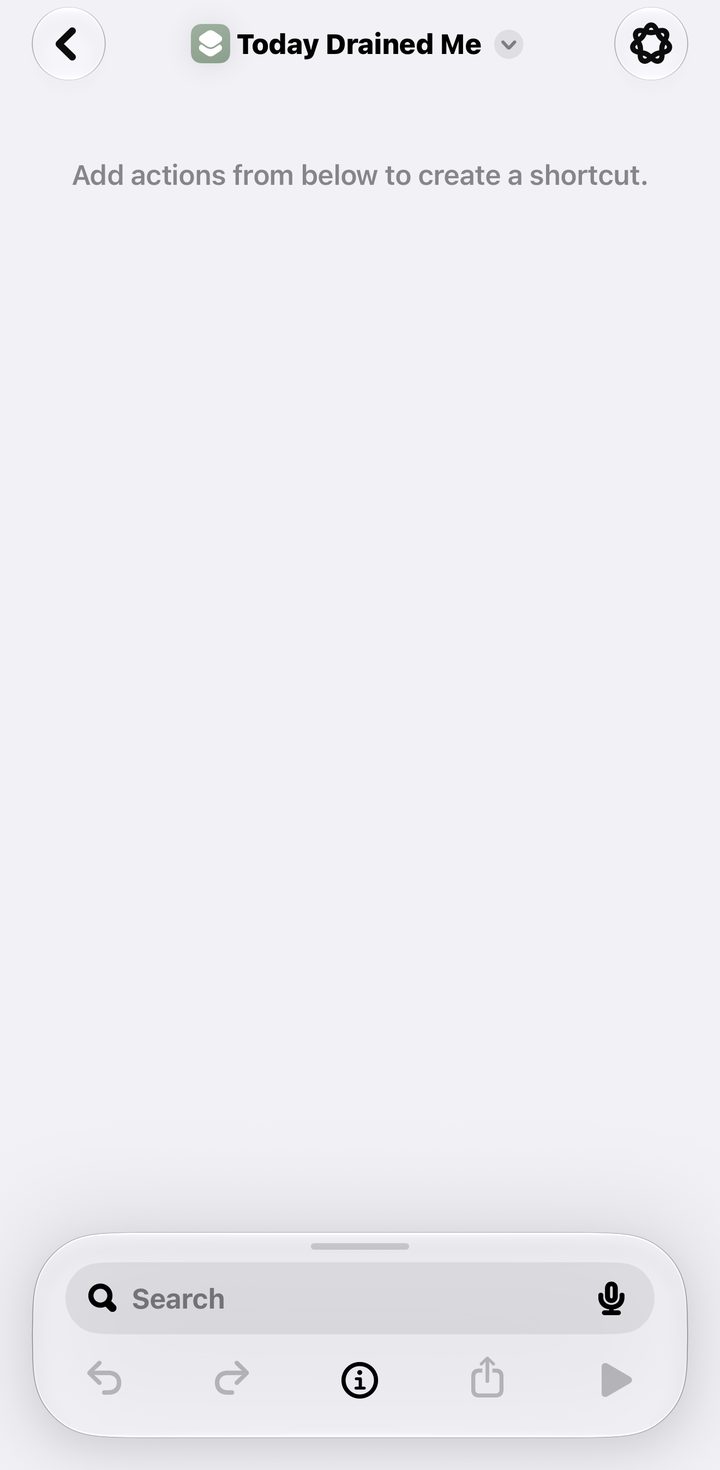
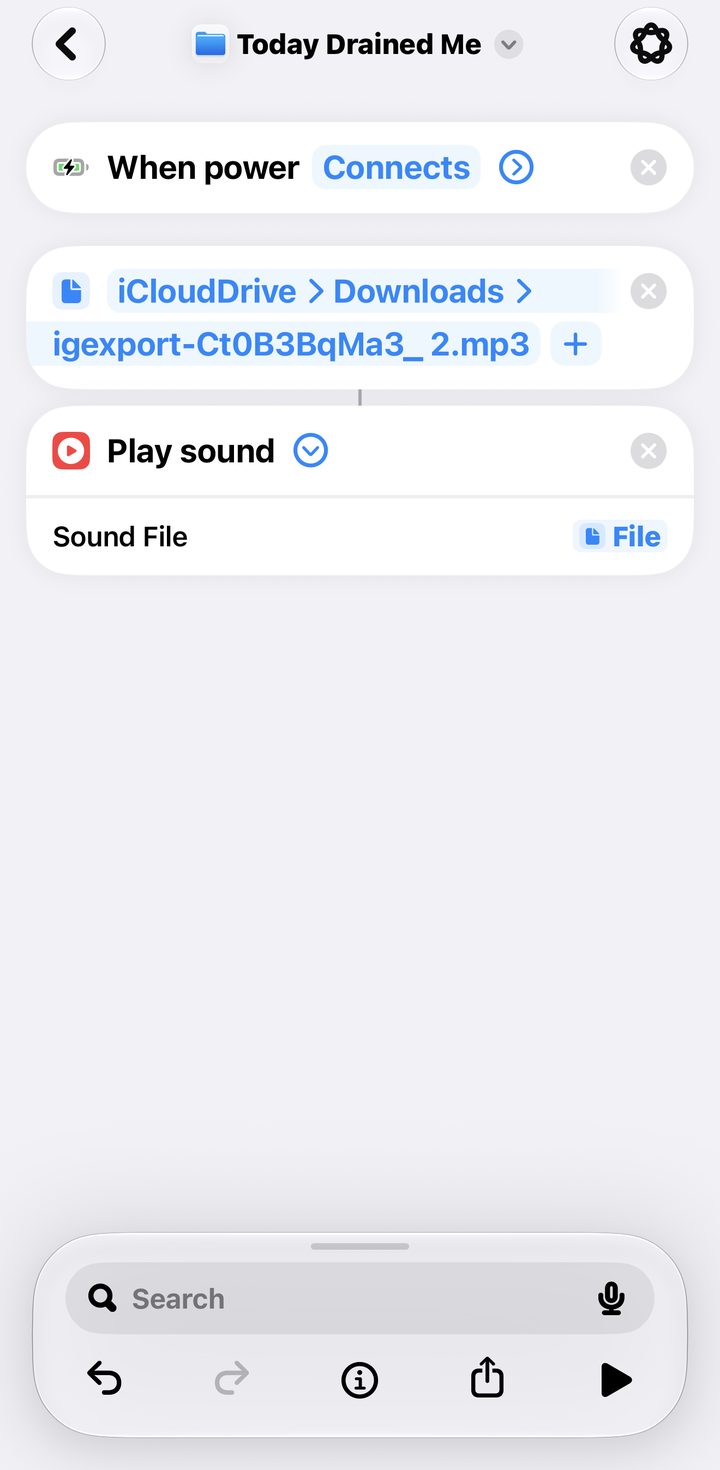
Tap the Search bar at the bottom, then tap the Automation chip just under it. That is the list of triggers. Scroll to Power and tap Charger. It lands at the top of the shortcut as When power Connects. Leave Automation on and turn Notify off.
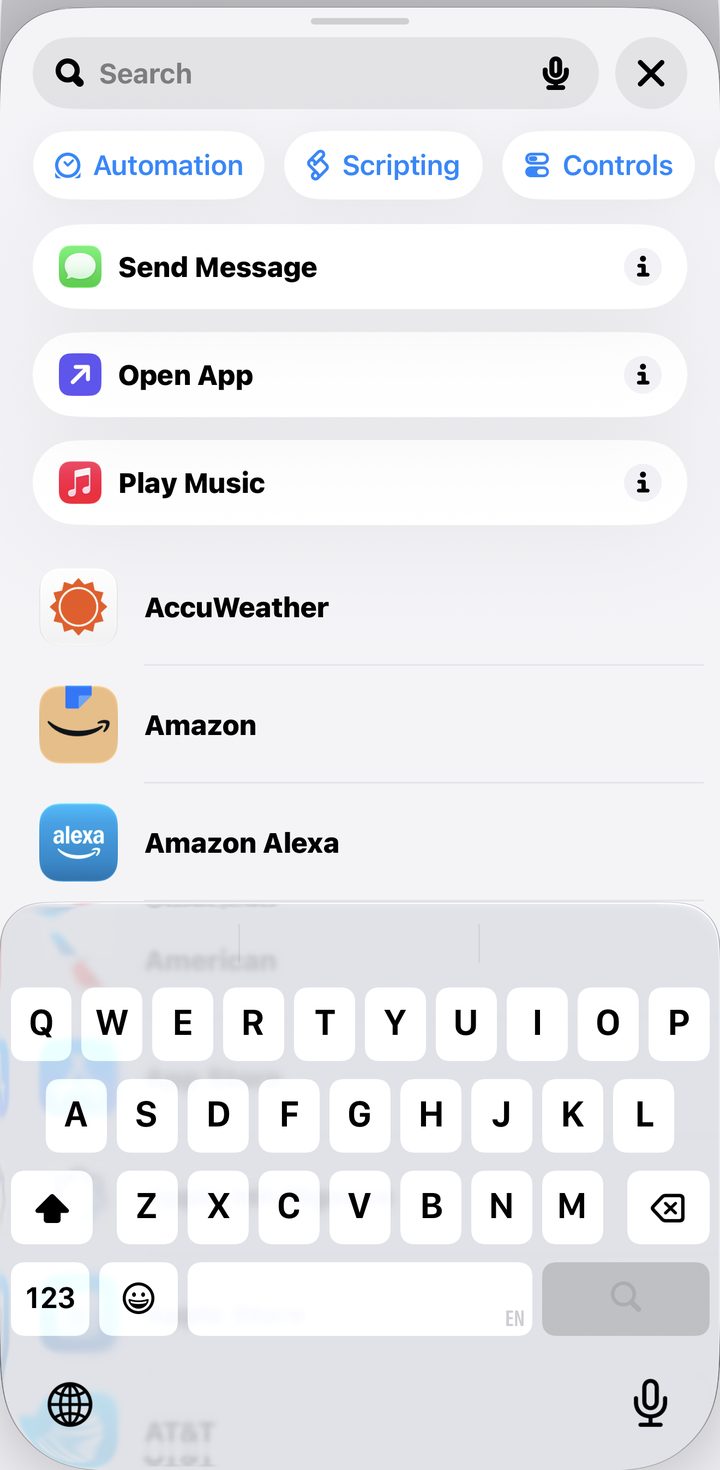
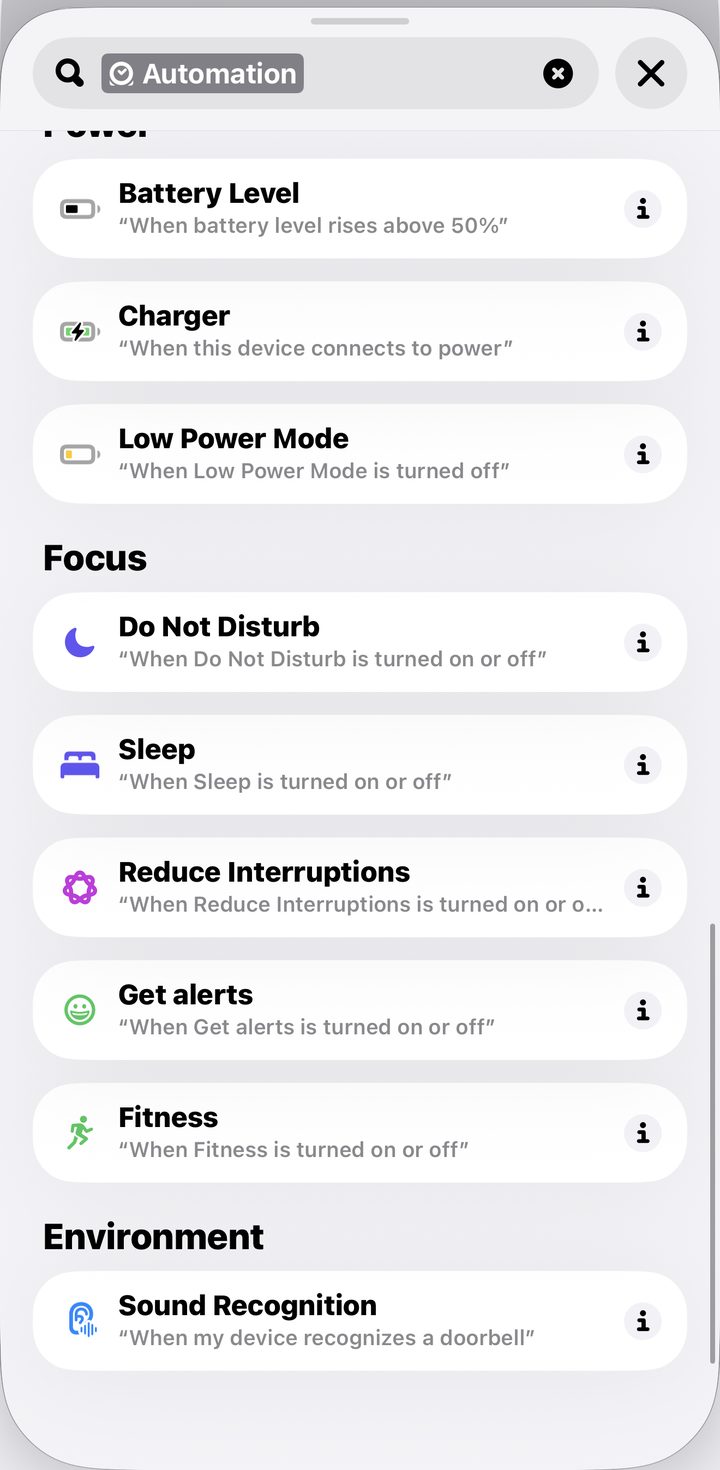
On iOS 26 or earlier: tap Automation at the bottom of the screen, then the plus. Tap Charger, leave Is Connected selected, choose Run Immediately, turn Notify When Run off, tap Next, then Create New Shortcut. Carry on from step 11, and skip step 14.
Tap the search bar and type File. Under Files, tap the one that says just File, not Select File.
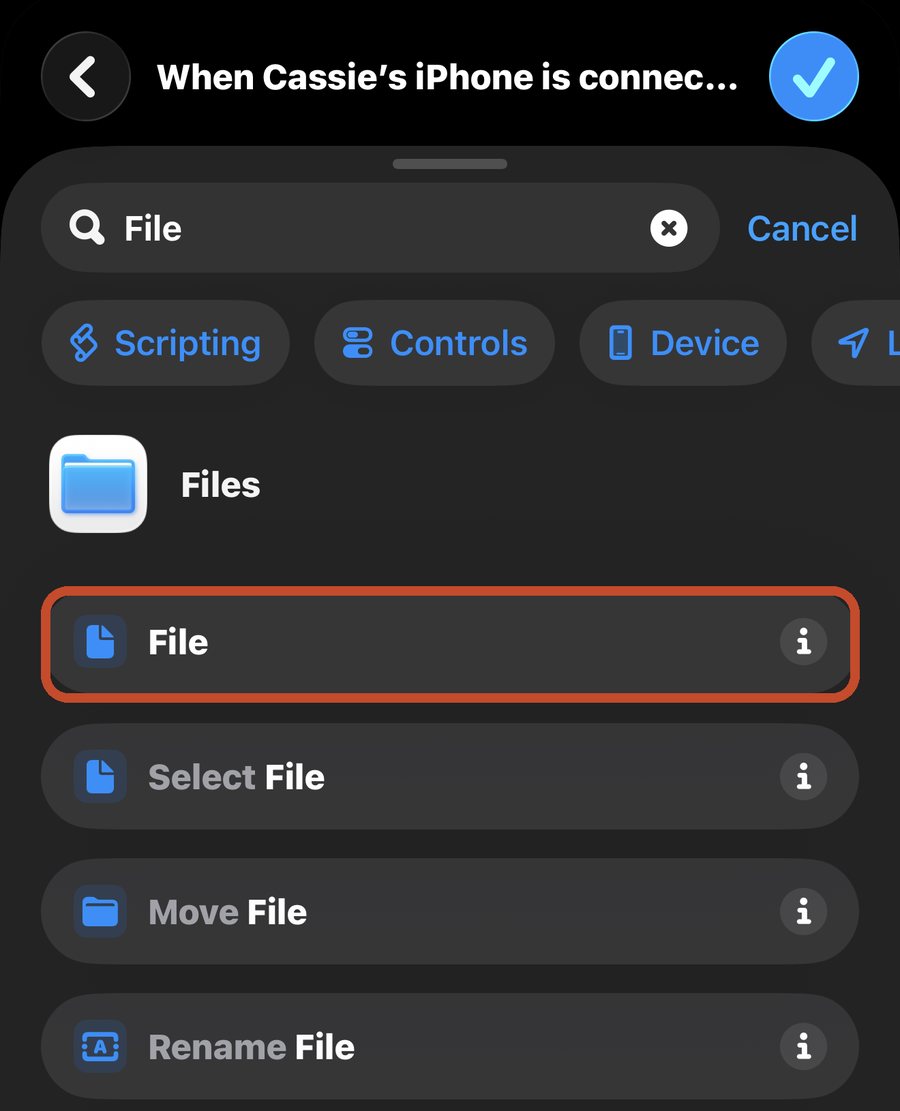
It drops in empty. Tap the blue File inside it, go to iCloud Drive, then Downloads, and tap your sound.
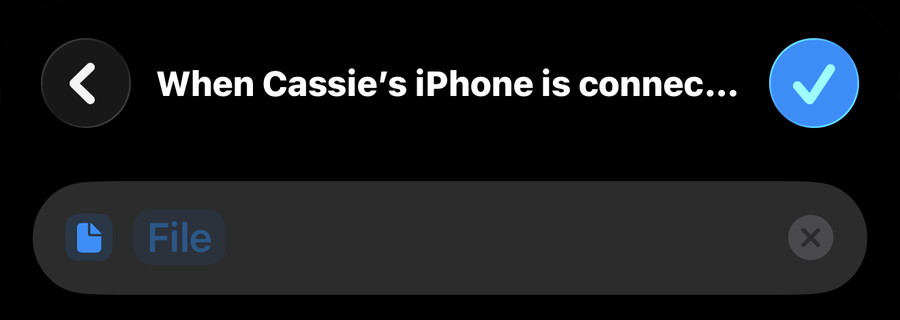
Search again and type Play Sound. Tap it, not Play/Pause. It should read Sound File: File. If it reads anything else, tap it and choose File.
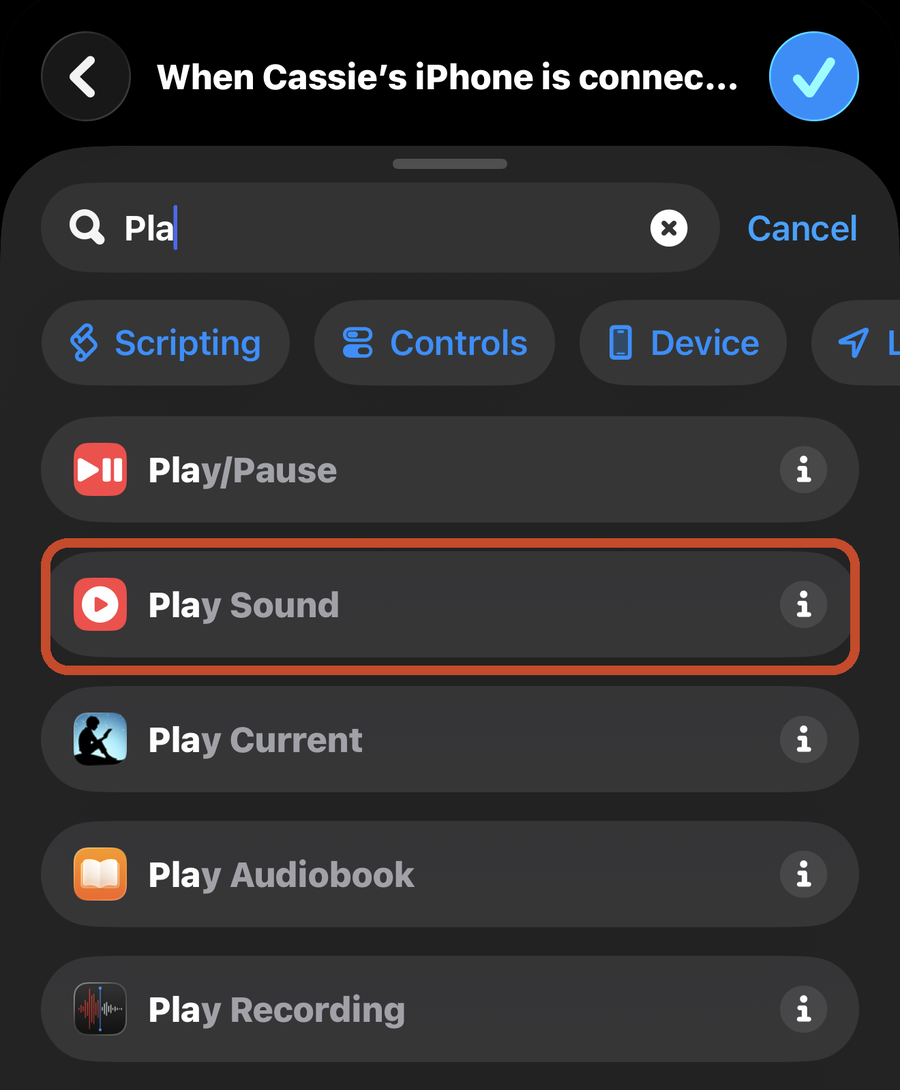
Tap the i at the bottom of the screen, then Privacy, and check Allow Running When Locked is on. That is the setting that lets it run without asking you first. Tap the back arrow, then the checkmark.
Plug your phone in. That's the test.
Good to know
It plays at whatever volume your phone is set to, so check that before bed.
It runs every time you connect to power — wireless pad and car included. If that's more than you want, pick a short sound.
If nothing plays, it is almost always the run without asking setting. On iOS 27, open the shortcut, tap the i, then Privacy, and check Allow Running When Locked is on. On iOS 26 or earlier, Automation tab, tap your automation, and the top of the sheet has to say Run Immediately. On Run After Confirmation it waits for you to notice a notification and tap it.
The sound is yours to choose. Anything you'd want to hear at the end of a day.
Installed from the link and it never asked you for a song? You tapped Skip Setup on the way in. Delete it from your library and add it again from the link.