New · The arrival text
Leave work, and it says when you'll be home.
What it does: when you leave work, your phone reads live traffic, works out when you will actually pull in, and texts that time to whoever is waiting on it. You never touch your phone and nobody has to ask. What time will you be home is never really about the time, it is somebody deciding whether to start dinner, planning around a number that lives with the one person who cannot answer because she is driving.
It installs from a link. You answer a few questions on the way in, where you leave from, where home is, and who gets the text, and it is set up.
The steps
Tap the link below on your iPhone and tap Add Shortcut. It asks you a few things, one at a time:
The place you leave from, usually work. Then your home address, street, city, state and zip.* Then who gets the text. Tap the plus and pick them from your contacts.
Get the On My Way Home shortcut
* Outside the US? The questions expect a state and a zip code, so tap Skip Setup instead. Then open the shortcut and fill in the Street Address action yourself, Region included, tap Recipients in the Send action to pick your person, and set the place in step 2.
Check the trigger took. Open On My Way Home from your library. If you see a summary with a Describe a change box, tap Edit in the top right. The first block reads When I leave followed by your place.
If there is a gray banner above it that says Configure "Location" to enable this automation, the question did not land. Tap the gray Location, search for the place you leave from, pick it and tap Done. The banner disappears when it is set.
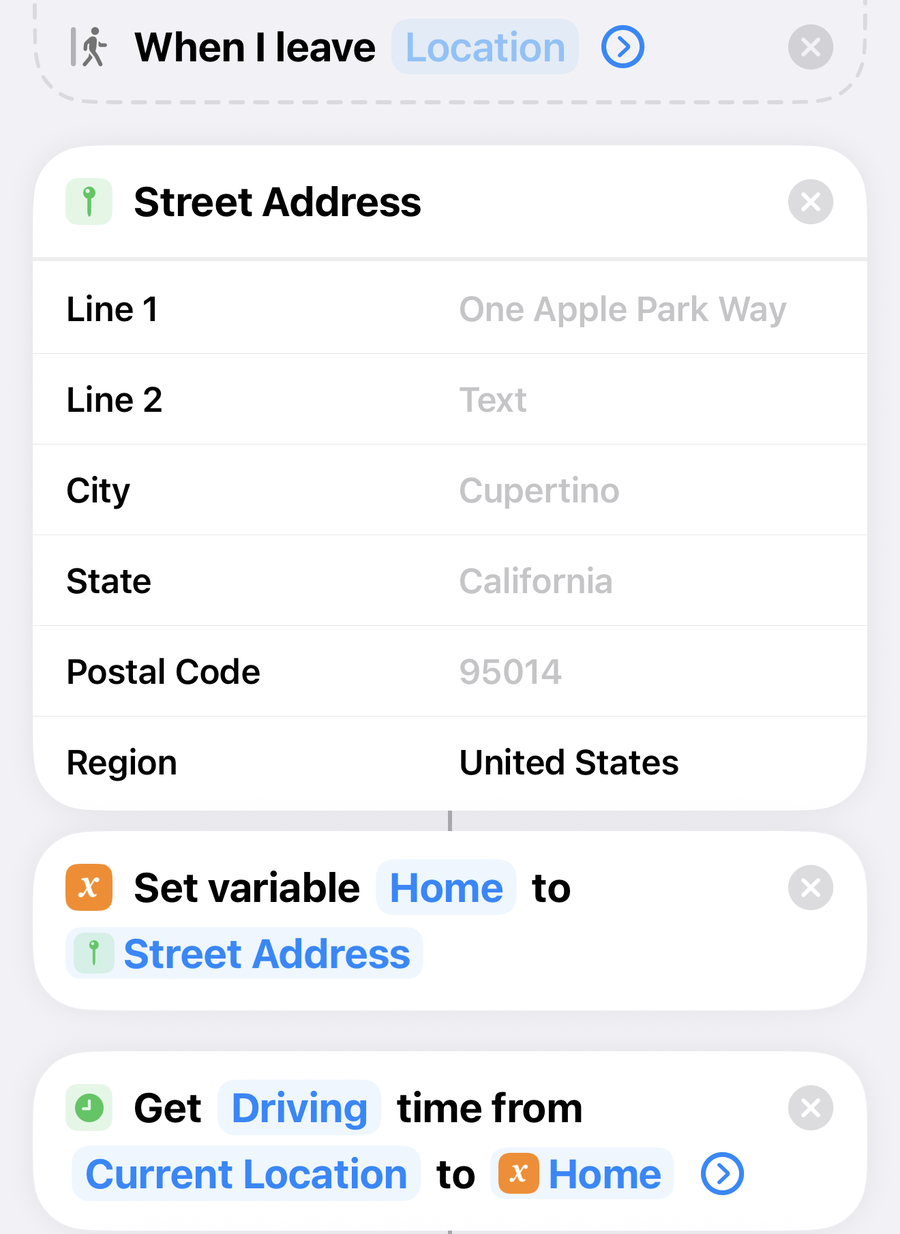
No trigger block at the top? Your iPhone is on iOS 26 or earlier, which leaves the trigger out of the link. Tap Automation at the bottom of the screen, then the plus, then Leave. Tap Location, pick the place you leave from, leave the time as Any Time, tap Done. Set it to Run Immediately, turn Notify When Run off, tap Next, then under Do pick On My Way Home and tap Done. Skip step 3.
Still in the shortcut, tap the i at the bottom of the screen, then Privacy, and check Allow Running When Locked is on. Tap the back arrow, then the checkmark.
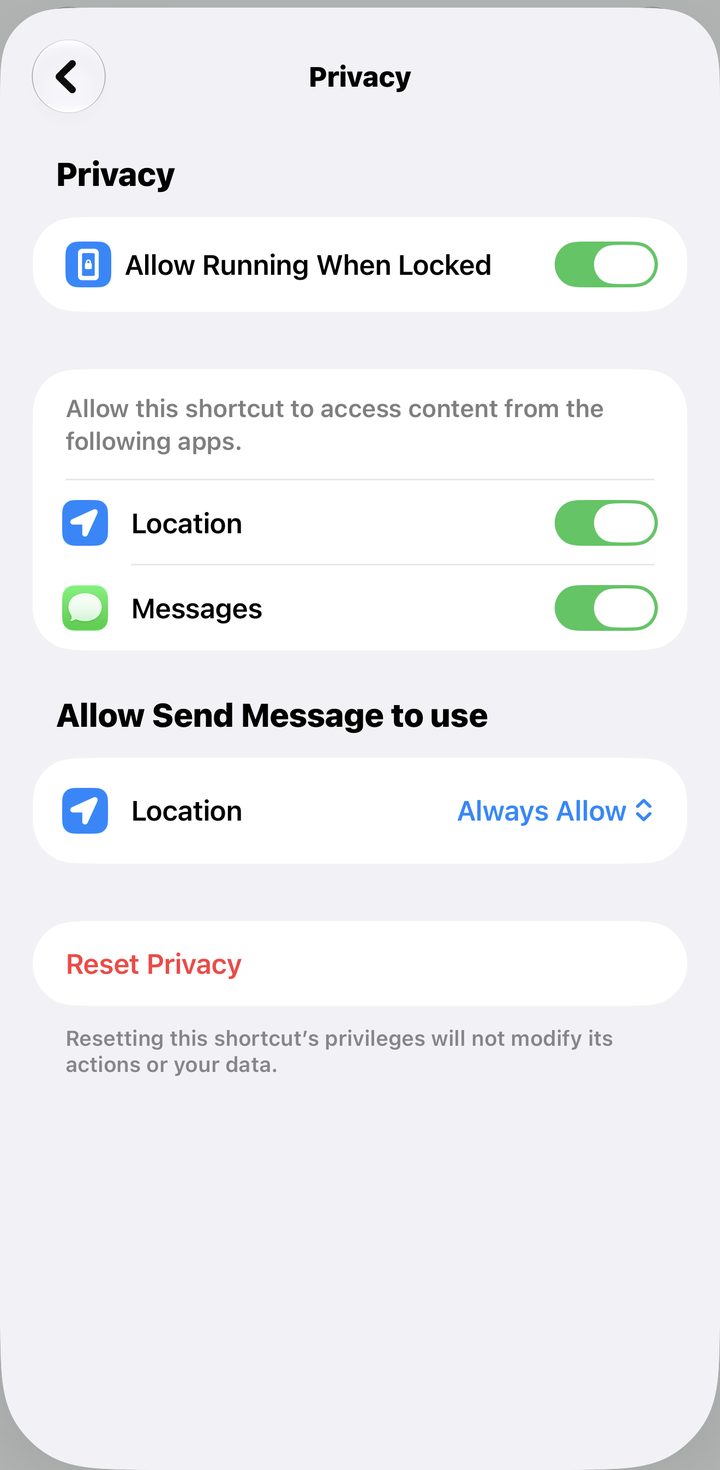
This is the one that decides whether the whole thing works. Off, it asks your permission every single day, which is the exact thing you were trying to stop doing.
Run it once, now. Tap the shortcut in your library. Your phone asks to use your location and to send a message. Tap Allow on both, so those questions never come up while you are driving.
It sends a real text with a short drive in it, because you are probably already home. That is the test. Send your person a heads up first if a surprise text is the kind of thing that gets you a phone call.
That is it. Tomorrow you walk to your car and by the time you are on the road it has already sent.
Good to know · changing it later
The message is the Text action in the middle. Tap into it and say it however your house talks. Mine adds let me know if we need anything while I'm out, because that question was coming anyway. Keep the Arrival Time pill where it is.
Moved, or want it to fire from somewhere else? Tap the place in the When I leave block to change where it watches, or the address fields to change home.
Fix · it never asked me anything
You tapped Skip Setup on the way in, so the questions were never answered. Delete the shortcut from your library and add it again from the link. This time answer the questions. Outside the US, that skip was on purpose, so fill the fields in by hand as the note under step 1 says.
Fix · nothing happened when I left work
Almost always the run without asking setting. On iOS 27, open the shortcut, tap the i, then Privacy, and check Allow Running When Locked is on. On iOS 26 or earlier, Automation tab, tap your automation, and the top of the sheet has to say Run Immediately. On Run After Confirmation it waits for you to notice a notification and tap it.
Fix · it opened the message instead of sending it
Open the shortcut, tap the arrow on the Send action, and turn Show Compose Sheet off. On, it waits on a message screen in your pocket that nobody is going to tap.
Fix · it fired late, or a few blocks down the road
That is normal and it is not something to fix. Your phone waits until you have genuinely left the area before deciding you have left, so it does not fire every time you walk to the parking lot.
Fix · Maps cannot find my address
Usually a missing field in the Street Address form. Open it and check City, State and Postal Code are all filled in, not just Line 1. That form needs the whole address, not the bit you would say out loud.
Fix · it has stopped running lately
Two usual causes. Location services got turned off for Shortcuts, which lives in Settings, Privacy and Security, Location Services, Shortcuts, and needs to be Always. Or Low Power Mode is on, which throttles background automations. Charging the phone fixes more automation problems than anything else on this page.