New · The ETA button
Home doesn't come from one place.
What it does: the arrival text above runs by itself and only knows about one place. This one lives on your home screen. Tap it from school pickup, the store, or the side of a soccer field, and it texts your arrival time from right where you are standing. That is the whole trade. Hands free and fixed, or one tap and anywhere.
The steps
Tap the link below on your iPhone and tap Add Shortcut. It asks for your home address, street, city, state and zip,* and then who gets the text. Tap the plus and pick them from your contacts.
Get the ETA shortcut
* Outside the US? The questions expect a state and a zip code, so tap Skip Setup instead. Then open the shortcut, fill in the Street Address action at the top yourself, Region included, and tap Recipients in the Send action to pick your person.
Run it once, now. Tap the shortcut in your library. Your phone asks to use your location and to send a message. Tap Allow on both, so neither question comes up on the way to the car.
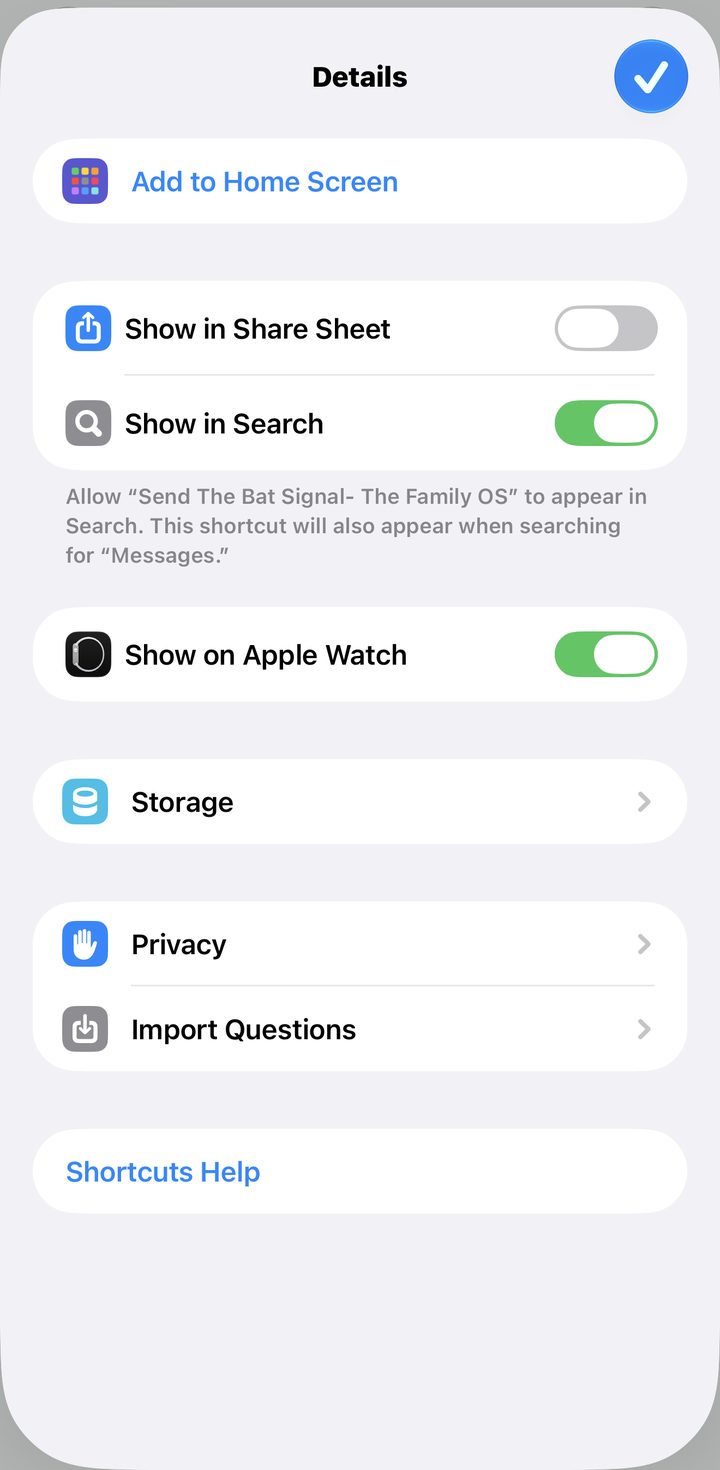
Put it on your home screen so it is one tap. Open the shortcut, tap the i at the bottom, and tap Add to Home Screen, the first item on the Details sheet. On iOS 26 or earlier, press and hold the shortcut in your library, tap Share, then Add to Home Screen.
Good to know · changing the message
The message is the Text action in the middle. Tap into it and say it however your house talks. Keep the Arrival Time pill where it is. That pill is the clock time you pull in, not how long the drive is, and only one of those is a number anybody can plan around.
Fix · it never asked me anything
You tapped Skip Setup on the way in, so the questions were never answered. Delete the shortcut from your library and add it again from the link. This time answer the questions. Outside the US, that skip was on purpose, so fill the fields in by hand as the note under step 1 says.
Good to know · reading it before it goes
It sends the moment you tap it. If you would rather see the message first, open the shortcut, tap the arrow on the Send action, and turn Show Compose Sheet on.
Fix · why not make this one automatic too
Because it does not know where you are going to be. The arrival text above watches one place. This one is for everywhere else, and you are the one who knows when you are leaving.